
Open Settings from the menu button at the top right of Transpose and scroll to Data & Reset. It is available in both the Transpose window and Side. The actions below follow their order on that screen.
These actions are not all limited to Studio. You can clear history, reset preferences and revoke permissions without an active Studio song. Analysis, model and scene cleanup appears in browsers that support Side; you do not need to activate another Studio song to clear that data either.
Data & Reset in Settings
1. Clear History
Clears Recent. Saved songs and lists in your account remain. This does not free a Studio slot.
2. Delete analyses and stems
Deletes cached source audio, stems and analysis results for all songs on the website Transpose is connected to. The confirmation names the affected sites, including embedded players where applicable. Check that list before confirming.
Data on other websites and downloaded AI models remain. Continuing playback with analysis or Stem Mix enabled can build new data.
3. Delete downloaded AI models
Deletes the downloaded stem, chord and beat models. Prepared audio and analysis results remain, along with your library and settings. Download the required models again for new processing.
4. Reset Preferences
Restores display, control, audio and analysis preferences, languages and keyboard/MIDI choices. Your scenes, history, generated data and account remain.
5. Reset Scenes
Restores all side-panel layouts to their factory settings. Your scene customizations are lost. Songs, clips, markers and your account remain.
6. Revoke Permissions
Removes previously granted website access. You will need to grant permission again when using Transpose on a website. Your account is not deleted.
Change only the current Studio song
The following buttons are in the song workspace, outside Data & Reset.
Reset audio from the songbar
For a Studio song, click the title or arrow at the top to expand the songbar. Choose Reset audio and confirm. This works in Side and in the Transpose window.
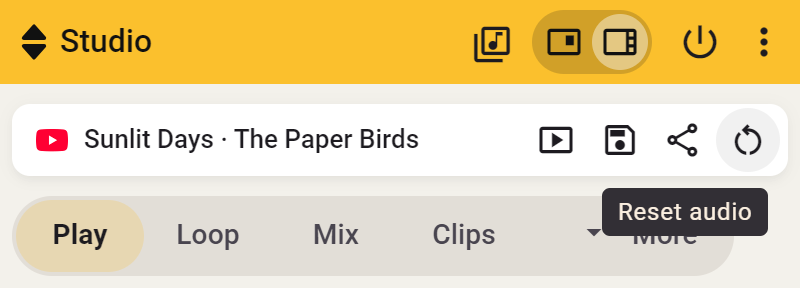
Pitch, speed, tuning and tone adjustments return to their defaults, and Stem Mix switches off.
- Side: an active loop, clip or Count-in keeps running.
- Transpose window: an active loop, clip or Count-in stops.
Volume, markers, saved clips and notes remain. A clip can reapply its own settings when you start it again.
Remove stems from the Stem Mix card
Open the Studio song in Side and expand the Stem Mix card. Choose Remove stems. This deletes the song’s prepared vocal and instrument parts and cached source audio, and switches Stem Mix off. The waveform, chords, beats and practice settings remain.
Remove analysis from Waveform
Open the Studio song in Side and move the pointer over the Waveform lane. Choose ⋯ → Remove analysis and recordings. This deletes the song’s recordings, stems, waveform and analysis. Your practice settings remain.
Music analysis stays enabled and can build new data during playback. To stop processing, see Turn music analysis off.