
What’s New in Transpose: Studio, Stem Mix and Music Analysis
Meet the new Compact and Studio interfaces, with Stem Mix, chord and beat analysis, and improved practice tools. Your existing Pro access stays valid, and everyone can use Studio with three songs for free.
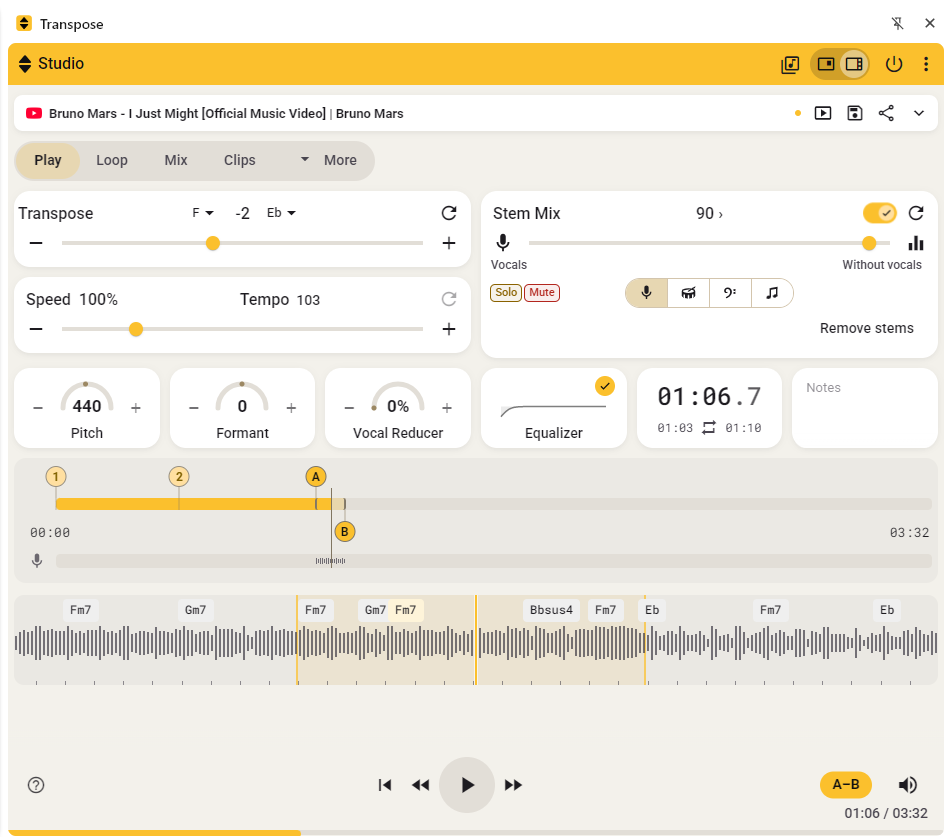
Transpose has new ways to help you learn and practise your music: updated controls in Compact, a flexible Studio workspace in Side, and tools for hearing individual parts, following chords and building practice sequences.
Already using Pro? Welcome to Studio
Transpose Pro (2025 edition) is now Transpose Studio. Your existing Pro access stays active, with unlimited Studio songs for the duration of your access. The new Studio tools are included in that access.
You can keep using Compact for quick adjustments, or open Side to explore Stem Mix, music analysis, Scenes and improved Clips.
What’s new in Compact
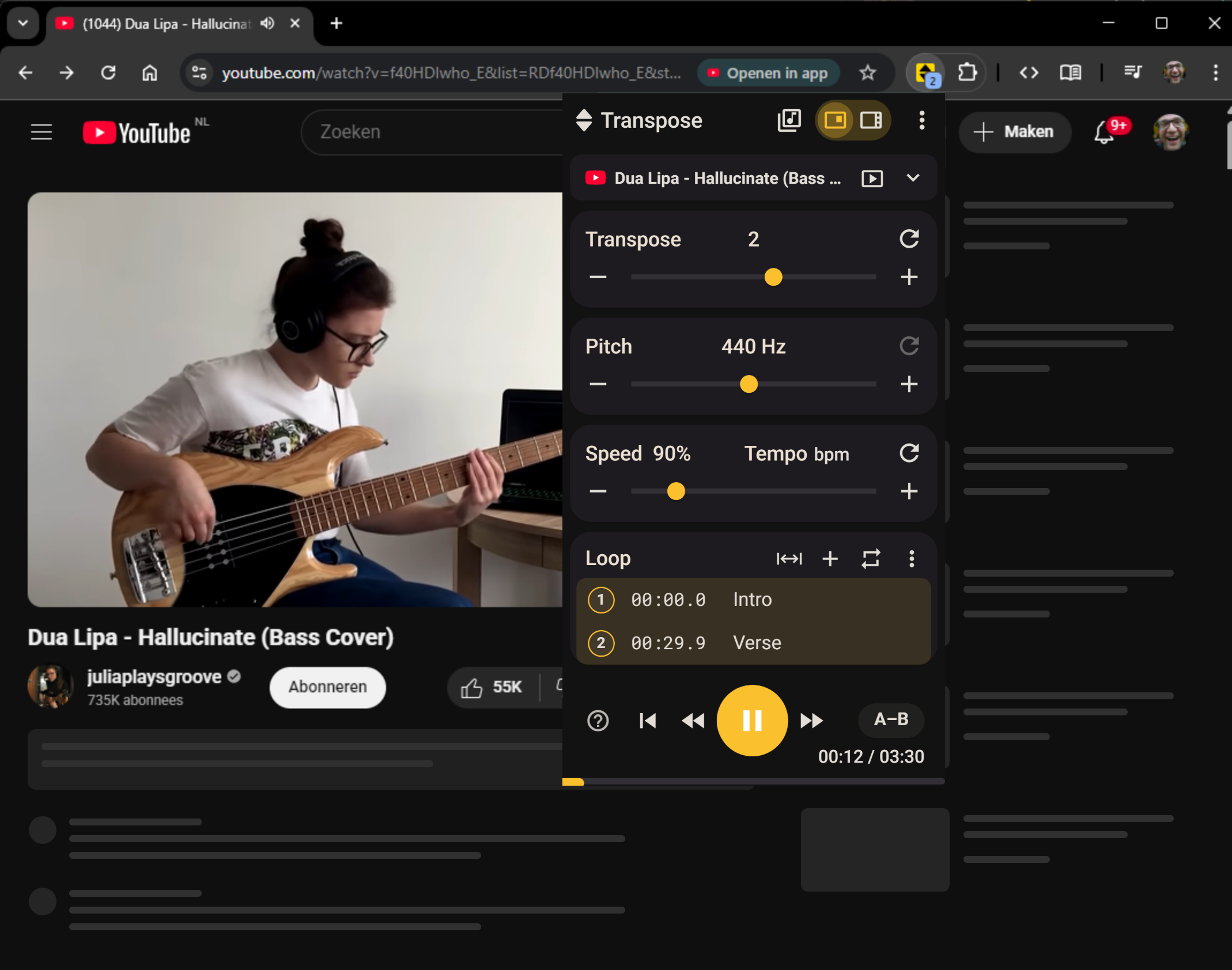
The small window that opens from the browser toolbar has updated controls for everyday practice:
- Quick A–B looping: mark the beginning and end of a passage as the song plays, then repeat it.
- Loop range selection: select the passage you want to practise with the range control.
- Songbar: see which song you’re controlling and expand it for song actions. For Studio songs, it also shows active audio adjustments.
- Compact and Side switch: move into the larger workspace when you want more controls beside your music.
Pitch, speed and loops remain free for all songs. You can keep using Compact for quick adjustments on any song.
Read Compact and Side, Loops and Songbar.
More ways to practise with Studio
Everyone gets three free Studio songs of their choice, without an account, subscription or expiry date. Once all three places are filled, you can replace one song every 30 days to practise with different music. Existing Pro access already includes unlimited Studio songs.
Open a song and choose Open in Studio to get started. See the Studio guide for choosing and replacing songs. Unlimited access options are available in Settings.
Hear a part, or make room to play it yourself
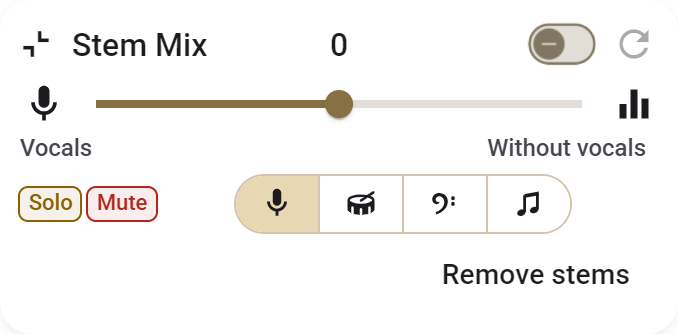
With Stem Mix, choose vocals, drums, bass or other instruments and adjust that part against the rest of the recording. Bring the bass forward to learn its line, listen closely to a drum pattern, or turn down the vocals and sing along.
Stem Mix prepares the separated audio locally as you play and capture the song, so allow time for processing before you use the mix. The existing Vocal Reducer is still available for immediate vocal reduction.
Read Stem Mix and Vocal Reducer.
Follow the chords and rhythm
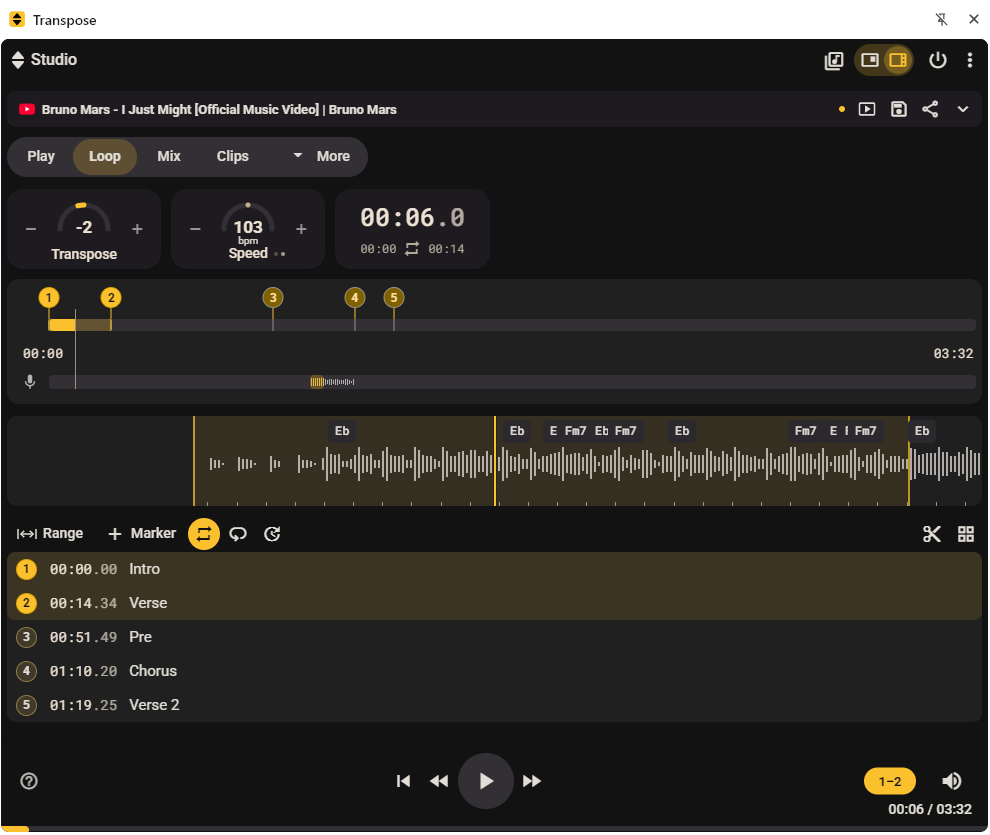
Studio’s waveform gives you a visual reference for finding and repeating a passage. Chord labels and beat ticks help you follow the harmony and rhythm alongside your markers and loop boundaries.
Chord and beat analysis provides a starting point for learning by ear; results depend on the recording and musical complexity. These tools require a one-time installation of the music-analysis components on a supported computer.
Read Waveform and Preparing music analysis.
Arrange your workspace around your practice
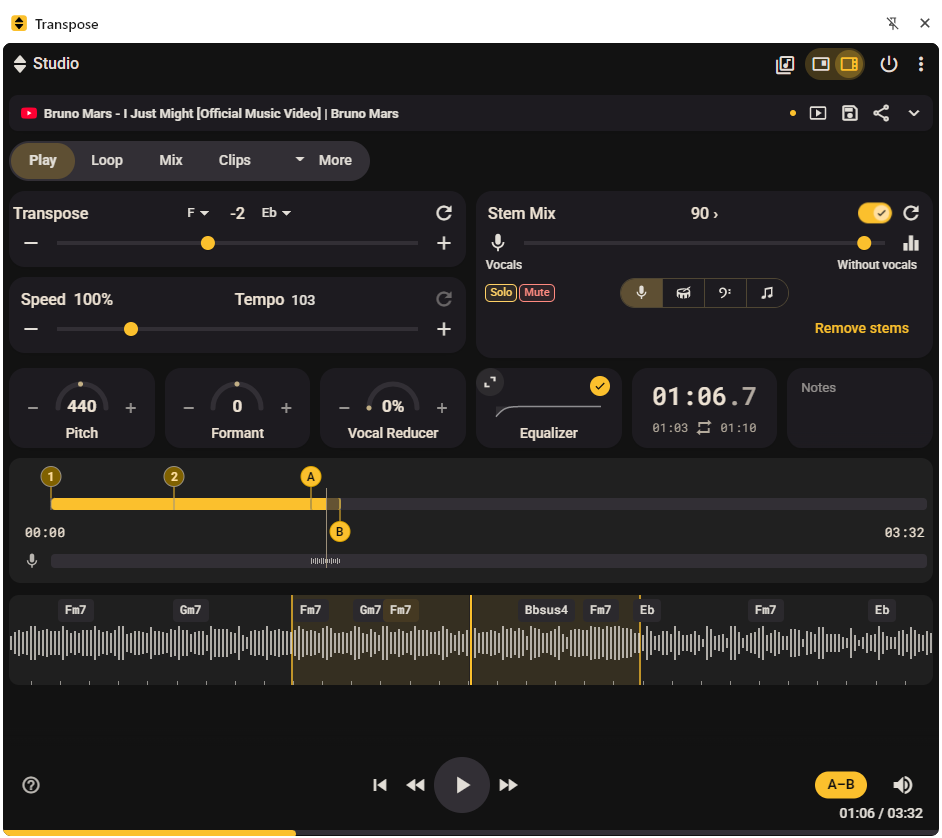
Side stays open beside the page, with room for your sound controls, waveform and Clips. Choose a Scene such as Play, Loop, Mix or Clips, then expand, collapse or hide controls to suit what you’re working on.
Read Scenes.
Turn a difficult passage into a practice sequence
The updated loop and Clip controls help you organise the parts you want to work on. Name markers, refine their times and use the timeline to adjust loop boundaries.
Keep passages as Clips with their own settings, then arrange them into a Clip sequence. Use a practice sequence to gradually increase the tempo or repeat a passage in different keys.
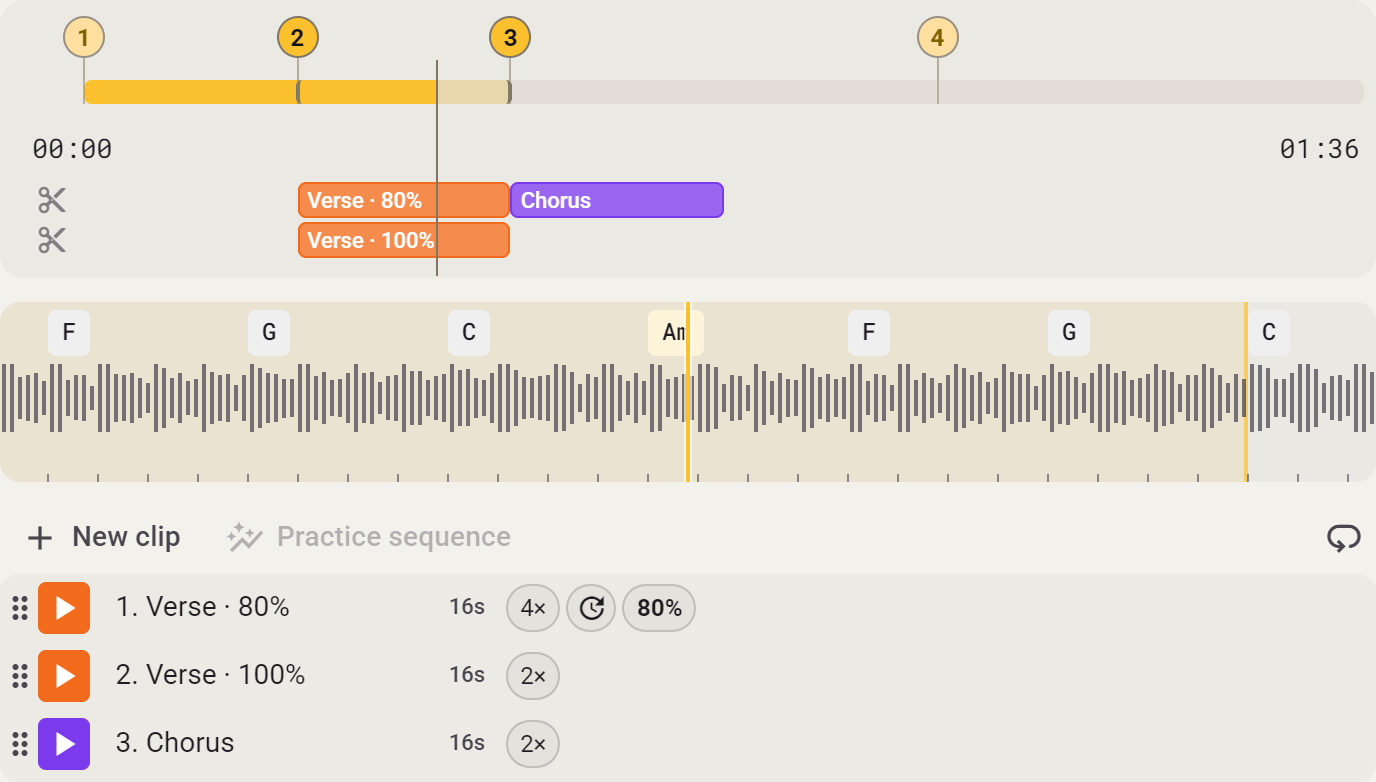
Read Clips, Clip sequences and Practice sequences.
Keep your practice ready for next time
Alongside these changes, Studio brings together the tools for keeping and controlling your practice setup. Sign in and Save your song settings, loops and clips, find them in Library → Saved, organise them in lists or share a prepared setup by link.
Keyboard shortcuts and MIDI assignments let you control your session from a keyboard, controller or pedal. Transpose Player also lets you practise with audio and video files from your computer, as well as supported YouTube, Vimeo and SoundCloud songs.
Read Saving, Library, Sharing, Keyboard and MIDI shortcuts and Transpose Player.