
At the top of the Transpose window, the songbar shows the title of the song Transpose is connected to. The icon on the left shows its website, such as YouTube. Check the title if you have several music pages open.
Use the Player icon beside the title to open a supported YouTube, Vimeo or SoundCloud song in Transpose Player. This button is available in both the Transpose window and the side panel.
Studio
When you use a Studio song in the Transpose window, Studio appears beside the song title. You can also check active Studio settings and stop a playing clip from this window.

Click the song title or arrow on the right to expand the songbar.
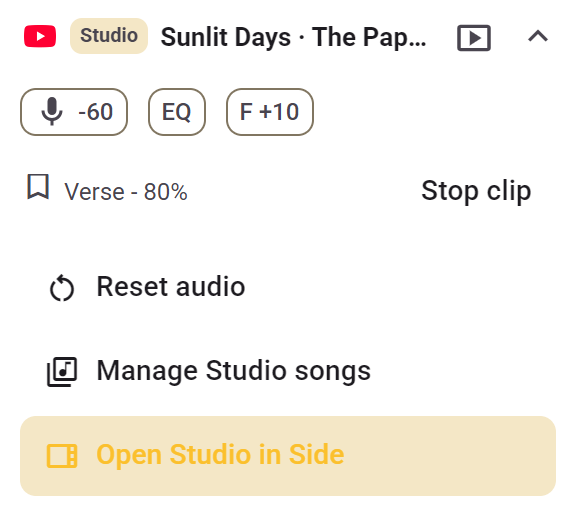
- Active sound settings: see which Studio effects are on: Stem Mix with the selected part and mix value, EQ and Formant. In this example, vocals are reduced and Formant is set to +10.
- Playing clip: see the active clip name. Use Stop clip to stop that clip playing.
- Reset audio: return sound settings to their defaults.
- Manage Studio songs: view your three chosen Studio songs and replace one when available. This button appears when the song is one of your three included Studio songs.
- Open Studio in Side: open the same Studio song in the side panel to work with all the controls, clips and timeline.
For a song you have not opened in Studio yet, this area offers Open in Studio. Use the arrow to collapse the songbar again.
StudioSide
Player, Save and Share sit beside the song title. A dot beside the title indicates that you have adjusted sound settings.

Click the song title or arrow to view your sound adjustments.
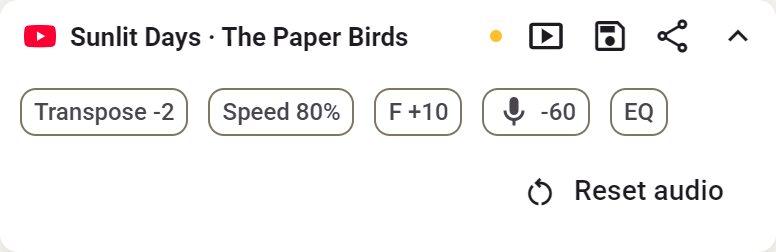
- Sound adjustments: chips show changed settings, such as Transpose, Pitch, Speed, tuning and active effects. Stem Mix shows the selected part and mix value.
- Reset audio: restore sound settings after confirmation. An active loop, clip or Count-in keeps running in Side. Volume, markers, saved clips and notes remain. See resetting.
- Save: keep your practice settings for this song. Read about saving.
- Share: share your song and practice settings through a link. Read about sharing.
Sign in when asked to save or share.