
Getting Started with Transpose
Open a song, choose a key, slow down a riff and set a loop. Then explore Studio and save your practice settings.
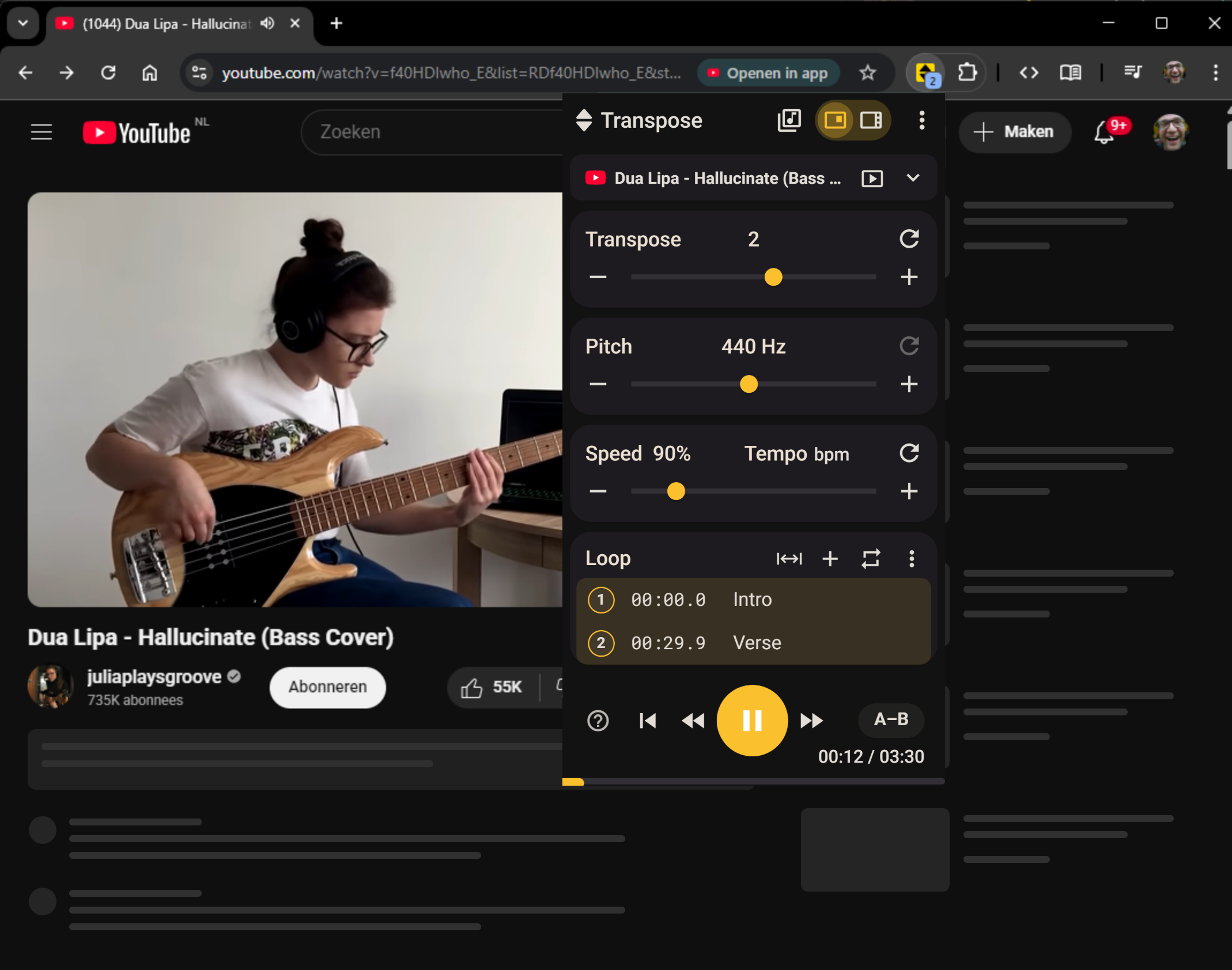
Pick a song you want to practise. In this walkthrough, you will open it in Transpose, choose a key, slow down a passage and set a loop. You can do all of this for free, without an account.
Keep the song on the website where you found it. There is no music file to download, upload or import into a DAW before you can change its key, slow it down or set a loop.
Open your song
- Install Transpose.
- Open a song on YouTube or another music website and start playback.
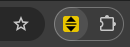
- Click the yellow Transpose icon in the browser toolbar. If it is hidden, open the browser’s Extensions menu and pin Transpose.
- If Allow access appears, select it and confirm the browser prompt.
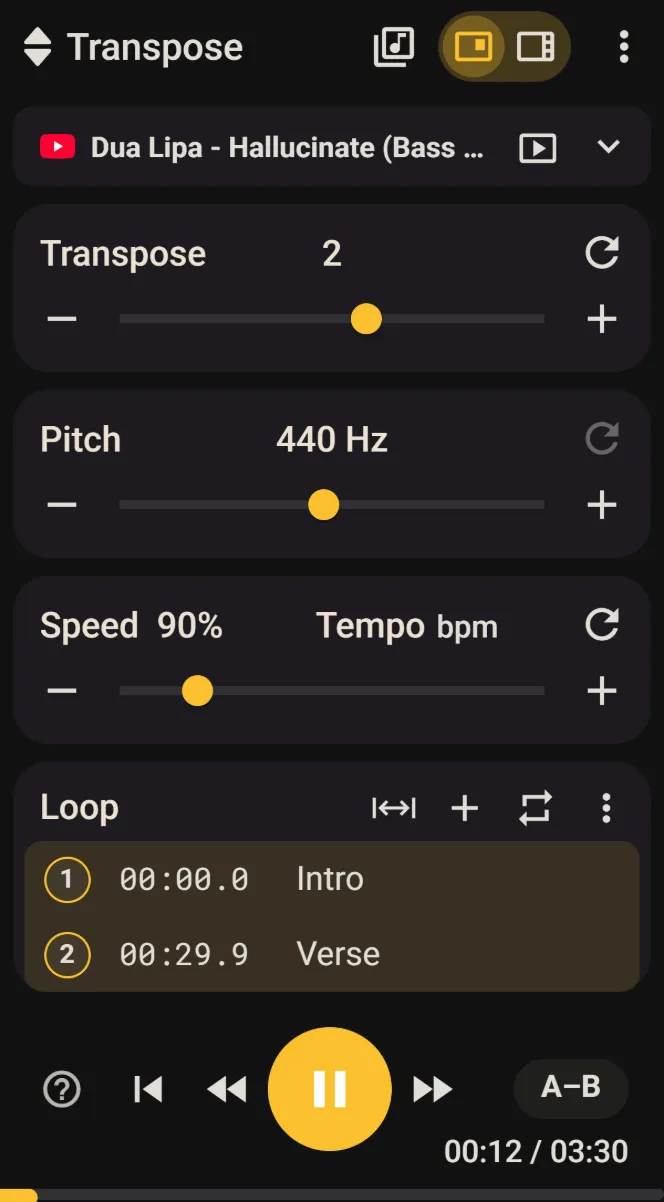
The songbar at the top of Transpose shows the connected song. Leave the music playing while you try the controls. For Spotify, use open.spotify.com.
Find a key that works for you
Suppose the chorus is too high for your voice. In Transpose, press − twice to lower the recording by two semitones. Sing the chorus again and adjust one semitone at a time until it fits.
If you are learning an instrumental part in the original key, leave Transpose at 0. Use Pitch only when the recording needs a finer tuning correction, such as matching an instrument tuned to 440 Hz.
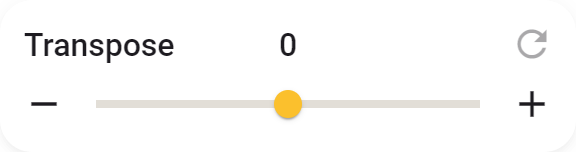
The reset arrow restores the control to its starting value. See Transpose and Pitch for the individual controls.
Slow down the riff
Find the riff or passage you want to learn. Set Speed to 80%, or lower if you need more time to hear the notes. The key stays the same while the music slows down.
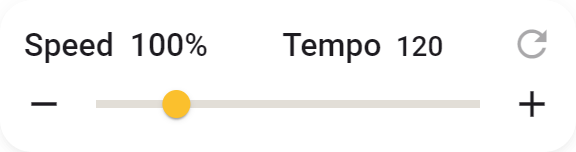
Once the rhythm and fingering feel comfortable, increase the speed gradually towards 100%. Keep the same key while you practise. The Speed guide explains the percentage and BPM displays.
Set markers and choose a loop
You do not need to keep seeking back by hand. Mark the start and end of the passage, then repeat it:
- At the beginning of the passage, use Add marker (+).
- Add another marker at the end. Click a marker’s time to adjust it precisely, and its name to label it.
- Choose Range, then select the two markers that bound the passage. You can also long-press the first marker’s number and click the second.
- Turn on Repeat. The highlighted range now loops.
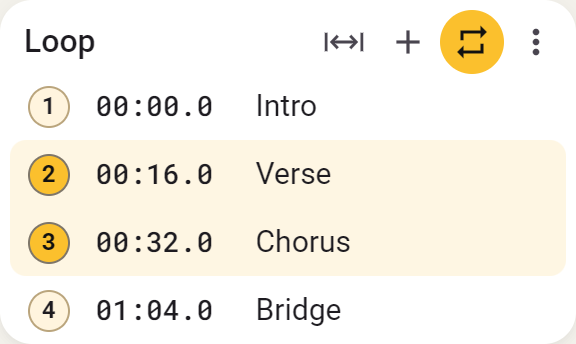
For a quick loop during playback, use A–B in the playback bar: click once at the start and again at the end. Count-in, in the Loop menu, plays four beats before the loop starts.
Practise the passage slowly, then raise Speed as you become more confident. The Loops guide covers markers, range selection and Count-in.
Studio
Continue in Studio
Choose Open in Studio for more ways to work on the song. You can use Studio for three songs of your choice, without an account, subscription or expiry date. Pitch, speed and loops remain free for all your songs.
Side stays open beside the page. It gives you room for the timeline, waveform and practice controls while you play.
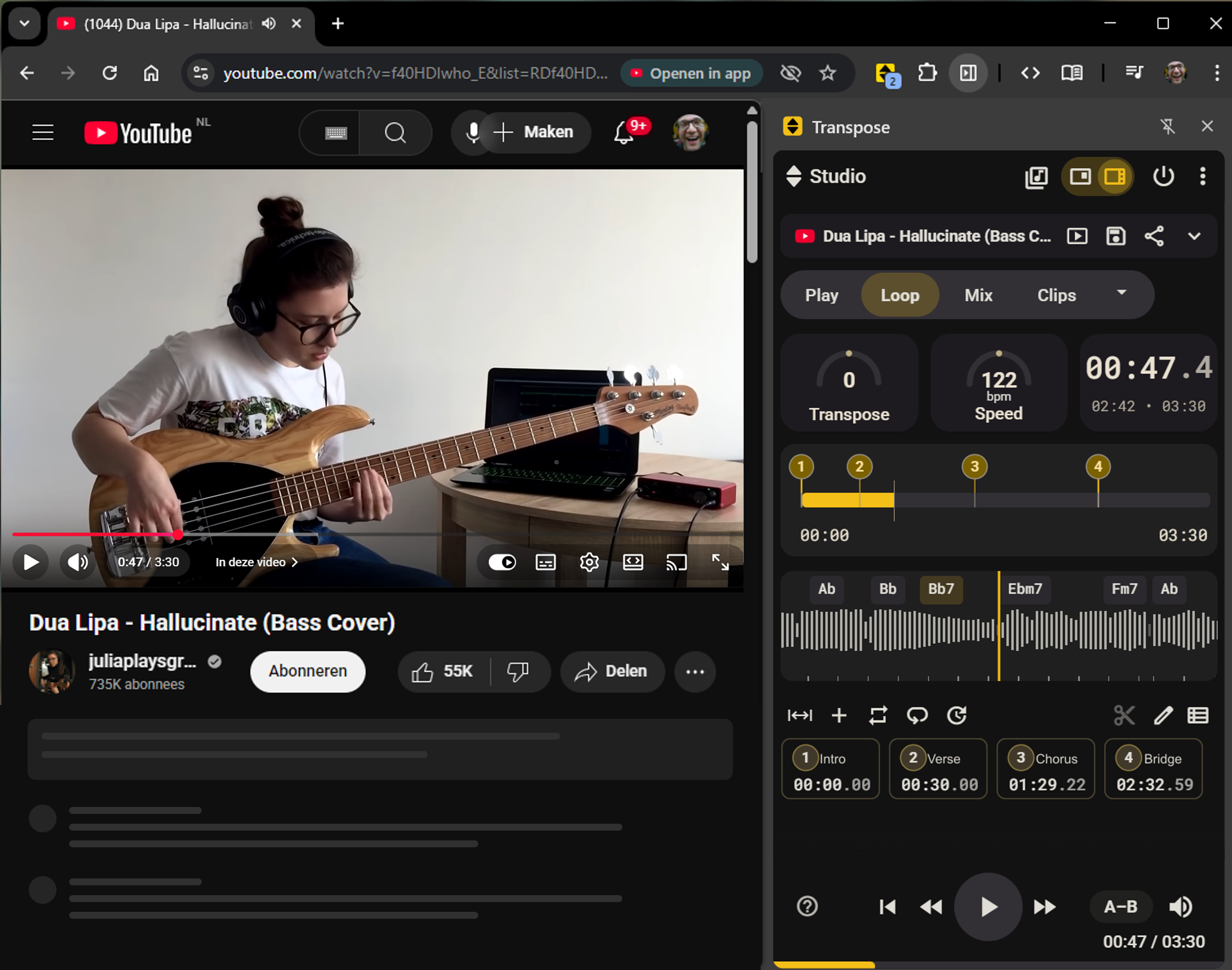
For the same passage, you can:
- Follow the waveform, chords and beat ticks while listening. Prepare music analysis first; the Waveform guide explains the display.
- Save the range as a Clip, then build a clip sequence with repetitions or different speeds.
- Use Stem Mix to hear the bass, drums, vocals or other instruments more clearly. It captures the passage as it plays, then processes it on your device. See Stem Mix.
See What can you do with Studio? for the full overview, replacing a Studio song and unlimited Studio options.
Keep your practice settings
When you want to return to your setup, sign in and choose Save. This keeps the song’s practice settings in Library → Saved. You can save different versions and share a link to your prepared settings; the music itself is not uploaded with the link.
Saving and Library explain how to find and reuse your work.