
You can open Transpose in two ways. Use the small window for quick adjustments. Choose the side panel to keep the controls in view while you practise.
The small window: Compact
Click the Transpose icon in your browser toolbar. Use the small window to raise or lower the pitch, slow down the music and repeat a passage. Click outside the window to close it again.
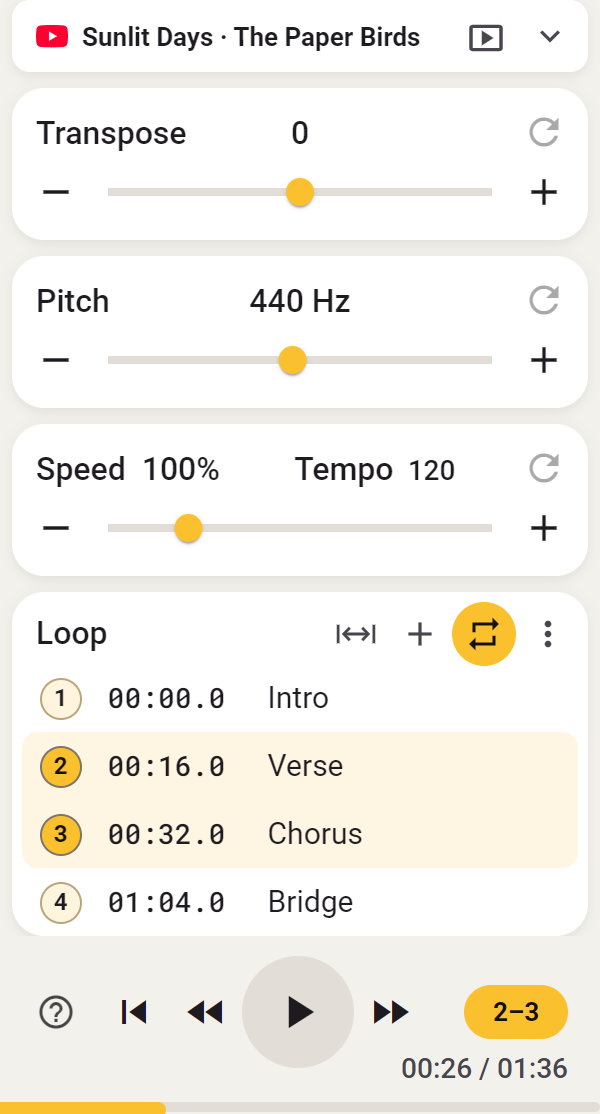
Beside your video: the side panel
The side panel stays beside the web page. It is useful when you want to replay a passage or adjust settings as you practise. Its button is labelled Side.

- Choose Side using the two view buttons in Transpose. If only an icon is visible, hold the pointer over it to reveal its name.
- Make the panel wider or narrower by dragging the edge between the panel and the web page.

StudioSide
- Use Play, Loop, Mix and Clips to choose which controls to see. You can customize these layouts.
Return to the small window
Choose Compact using the same view buttons. You keep working with the same song.
Want the extra Studio features, such as clips and the stem mixer? Read how to choose one of your three Studio songs. You can control a Studio song from the small window too.
Why is Side missing?
In Opera (including GX), Vivaldi and Yandex, Transpose offers Compact only. This also applies when the browser does not provide the required side-panel support. The Side switch and Studio controls are hidden in these browsers; ordinary Transpose controls remain available. Existing saved songs and account access are retained.