
Raise or lower the music to sing along or play in another key. The speed stays the same.

- Changes the pitch by one semitone.
- Reset returns Transpose to 0.
- Extended Range increases the range from ±12 to ±36 semitones.
Studio
- Turn on Mouse wheel control in Settings; place the pointer over the slider and scroll by one semitone. Hold Shift for steps of ten.
- When Varispeed is on, you can transpose up or down by no more than 2 semitones.
StudioSide
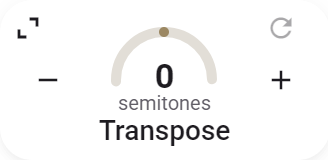
- Gauge: press and hold it, then drag to change the value.
- Move the pointer over the card and click Expand to show all controls.

-
Move the pointer over the card and click Collapse to return to the small card.
-
Key on the left (for example C) is the recording’s original key. Click the letter or arrow to set or correct it; this does not change the audio.
-
Key on the right is the key after transposing. If the original key is known, choose your target key here: C to D sets Transpose to +2 semitones, for example.
-
At 0, the right-hand key stays blank: the music plays in its original key. A ? means no key has been set or recognized.
-
The original key can be filled in automatically using chord and key recognition.