
Slow down a difficult passage to hear it clearly and practise along. Pitch stays the same while Varispeed is off.
You cannot change Speed while Stem Mix records audio.

-
Tap: move the pointer over Tempo to reveal the Tap button. Click along with the beat a few times to set the tempo.
-
BPM: enter the tempo manually.
-
Reset returns Speed to 100% and keeps the BPM.
-
BPM and speed: the displayed tempo follows playback speed. A 120 BPM song at 80% plays at 96 BPM. Entering a BPM corrects the tempo reading; use the Speed control to change playback speed.
Studio
- Turn on Mouse wheel control in Settings and scroll over the slider to change Speed.
- Indicates that Speed and Pitch are linked through Varispeed.
StudioSide
- Tempo from analysis: when beat analysis is enabled and enough music has been analyzed, Speed uses the detected tempo unless you have entered or tapped one yourself.
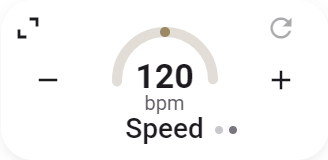
- Gauge: press and hold it, then drag to change the value.
- % / BPM: click the value to switch the display.
- Move the pointer over the card and click Expand to show all controls.

- Move the pointer over the card and click Collapse to return to the small card.