
StudioSide
Listen to vocals, drums, bass or other instruments separately. Or turn one part down to play it yourself. Stem Mix first needs to capture and process the music.
Capture first, then process
- Open your song in Studio and turn Stem Mix on. On first use, Transpose installs the tools to split vocals and instruments. Wait for the installation to finish.
- Play your song. Transpose prepares the vocals and instruments.
- Transpose processes the captured music in sections to separate vocals and instruments. This takes time and depends on your device.
- Once a section is ready, you can listen with Stem Mix and practise it repeatedly in a loop. You do not have to wait for the entire song to finish processing.
A passage that is not ready yet temporarily plays as the original mix. Give Transpose a little more time, then try that passage again.
What do the status colours mean?
- Red: Transpose is receiving and capturing audio.
- Blue: the section you currently hear is not ready for Stem Mix. You hear the original music there for now. Blue can also appear while capture continues.
Stem Mix does not instantly remove vocals from every new passage. To sing along immediately without this preparation, try Vocal Reducer.
Using Varispeed
Stem Mix switches off and is unavailable while Varispeed is on. After turning Varispeed off, turn Stem Mix on again yourself. Prepared stems, the selected part and the mix balance are retained.
Adjust the mix
Move the pointer over the card to reveal its extra buttons.
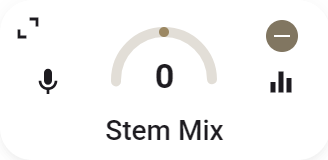
- The yellow status button turns Stem Mix on or off.
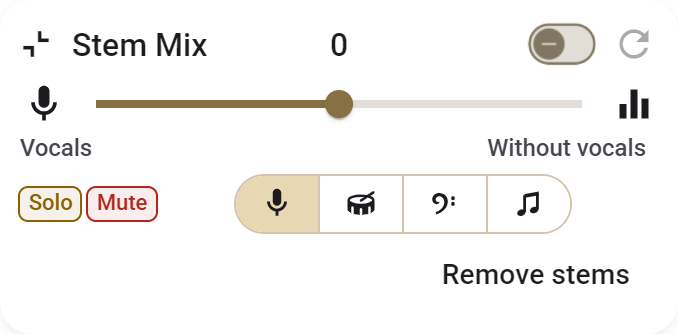
-
Expand the card to choose vocals, drums, bass, or other instruments.
-
Move between the selected stem and the rest of the song, or hear both in full.
-
With Mouse wheel control, place the pointer over the slider and scroll to adjust the mix.
-
Reset returns the mix to the center.
-
Solo plays the selected part; Mute removes it. Press the active mode again to restore the previous balance. Capture and processing happen on your device. Stem Mix needs a compatible computer with graphics acceleration and is unavailable in Tab Audio. Separation quality also depends on the recording. Save keeps your practice settings, not the captured audio or separated parts.