
StudioSide
A clip is a passage you can name and play again. For example, practise the verse slowly and then play the chorus at normal speed. Clips are part of Studio.
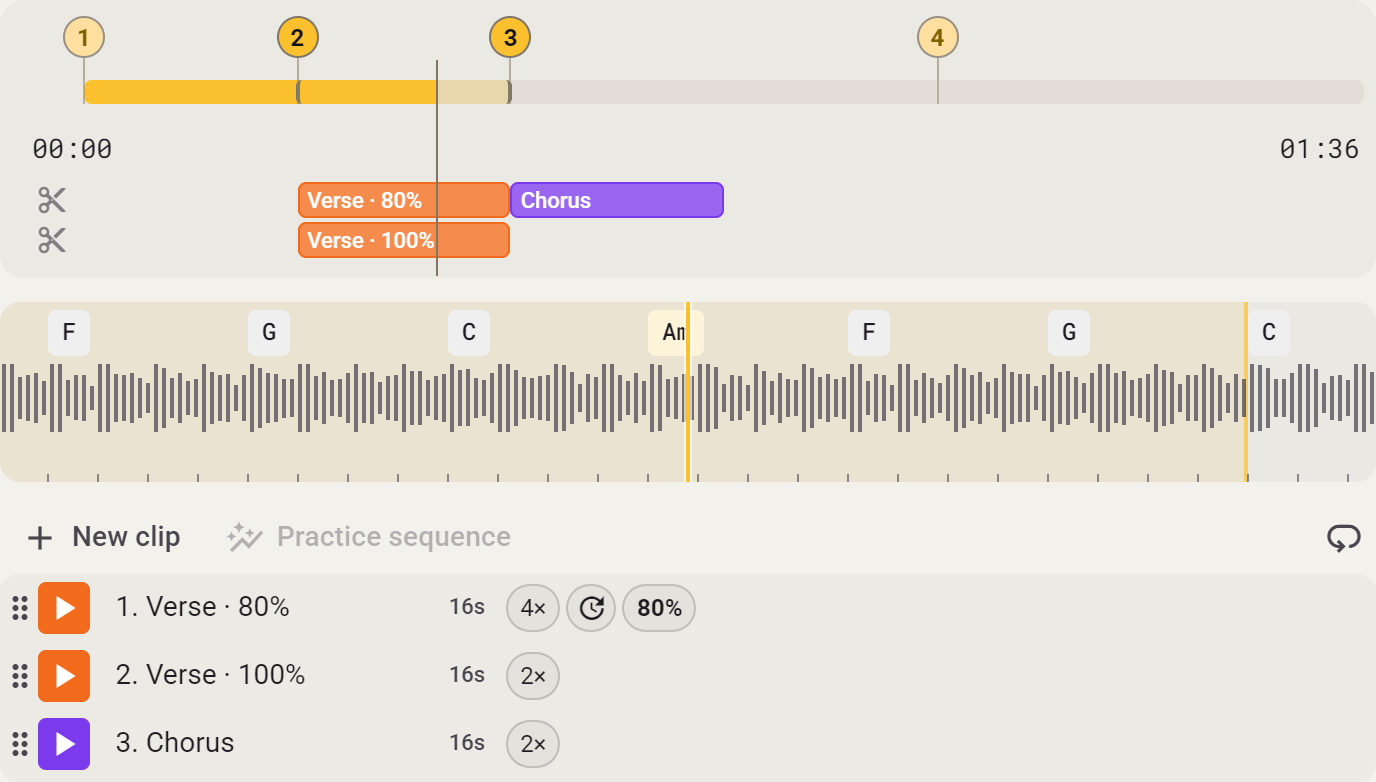
New clip
- Open your song in Studio and choose Clips in the side panel.
- Set a loop around your passage and choose New clip. Without a loop, the clip starts at your current position and lasts up to eight seconds.
- Give it a useful name, such as ‘Chorus’.
Expand the clip to adjust its start, end and repetitions. You can also choose its own speed or pitch.
Practise several clips
Drag clips into the order you want, then click a clip’s play button. The other enabled clips follow. Disable a clip to skip it.
Duplicate a clip for another practice version. Deleting removes it immediately. Choose Save to keep your clips for next time.
Edit clip
Expand a clip in the side panel to edit it. A clip is a saved passage of your song, such as the chorus.
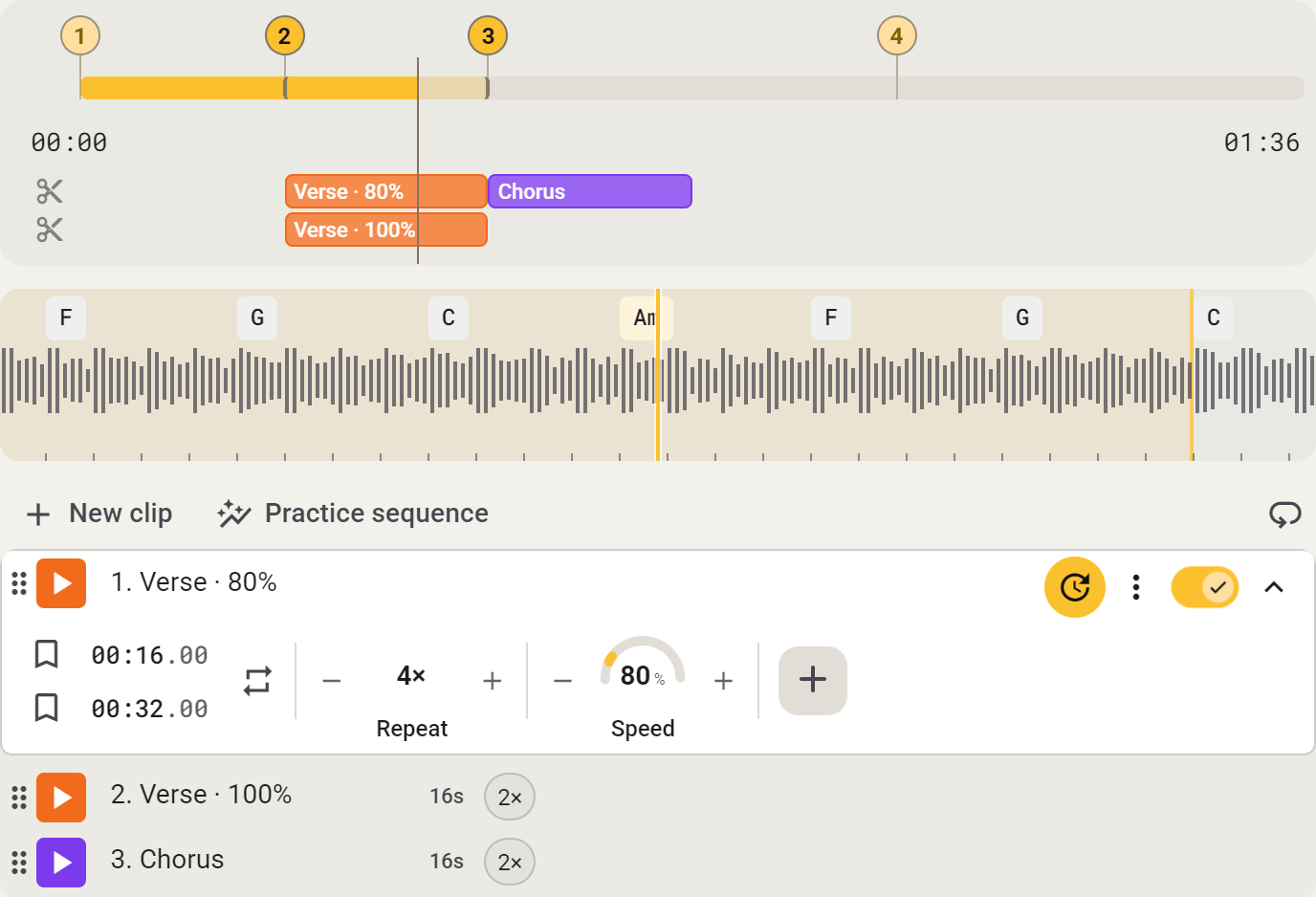
- Click its name to change it.
- Adjust Start and End, or set A and B at the current playback position.
- Choose 1–16 repetitions. Enable Count-in for four beats before the clip starts.
- Repeat this clip keeps the same passage playing until you turn it off.
- Add a different speed or sound setting if this clip should sound different from the rest of the song.
Collapse the clip to make room; its settings remain. Disable a playing clip to stop it. Duplicate makes a copy; Delete removes it immediately.
Clip settings
A clip normally uses the song’s settings. Add only the settings you want to change for that passage.

Add a setting
Expand the clip and add Speed, for example. Set it to 80% to slow down just this clip. Other clips keep their own speed.
You can adjust Transpose, Speed, Pitch, Formant and Vocal Reducer per clip. The equalizer, Stem Mix and Varispeed apply to the whole song.
Return to the song’s setting
Remove the added setting to use the song’s value again.
While a clip plays, its settings take over the corresponding main controls. Stop the clip to return to the settings for the whole song.