
Transpose Player is a playback page for music and video. Open an online song or your own mp3, audio or video file. Use the Transpose window or side panel to adjust pitch and speed and practice with loops.
Open Player
Play the song and open Transpose. Click the Player icon beside the song title in the songbar. Player opens with that song. This button is available in both the Transpose window and Side.

To open an empty Player for a local file, click ⋮ in the top-right corner of Transpose to open Settings.
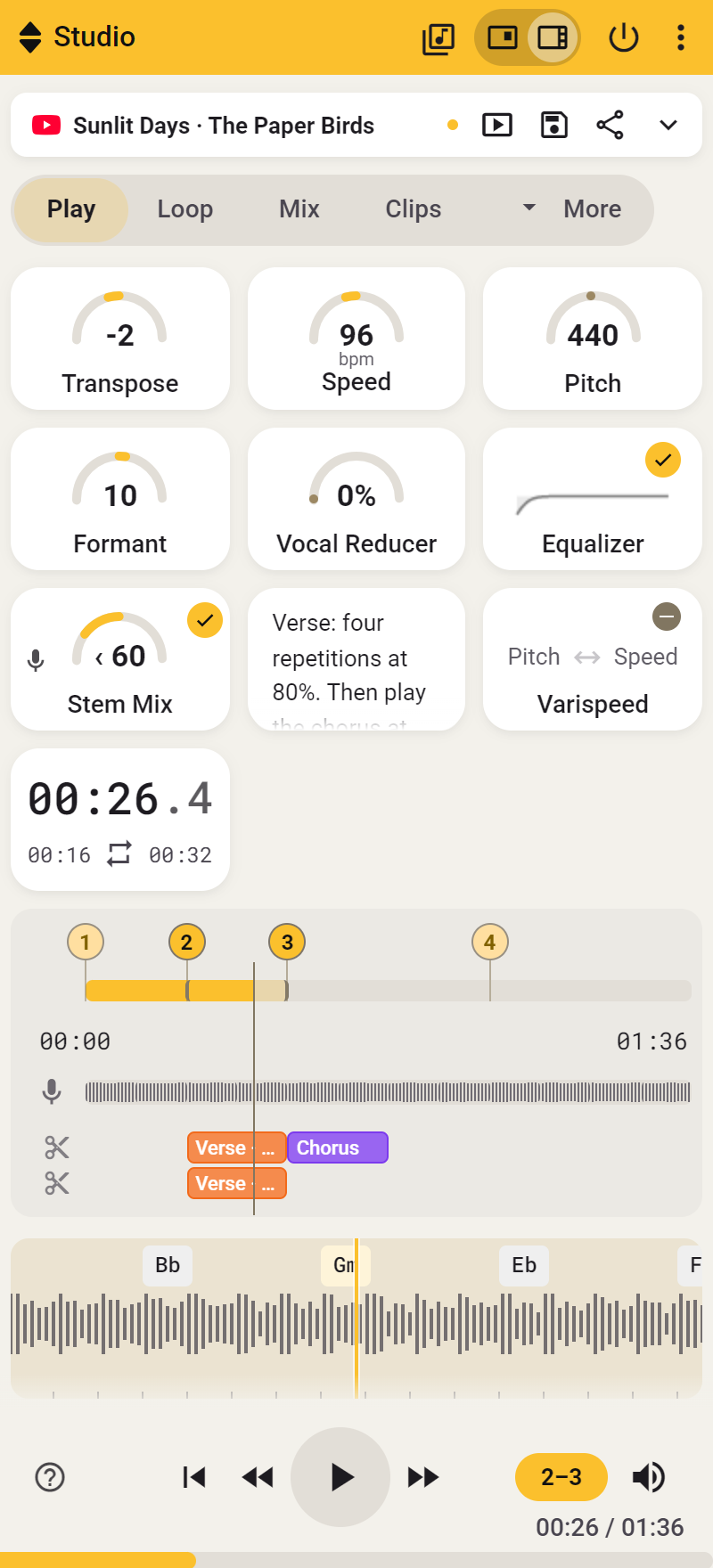
Choose Transpose Player in Settings.
Play an mp3 or another file
Click Select file and choose your file, or drag it into the file area. Player shows the filename, waveform and playback controls. Click the waveform to jump to another position.
Open the menu next to Select file and choose Dropbox to open an audio or video file from your Dropbox.
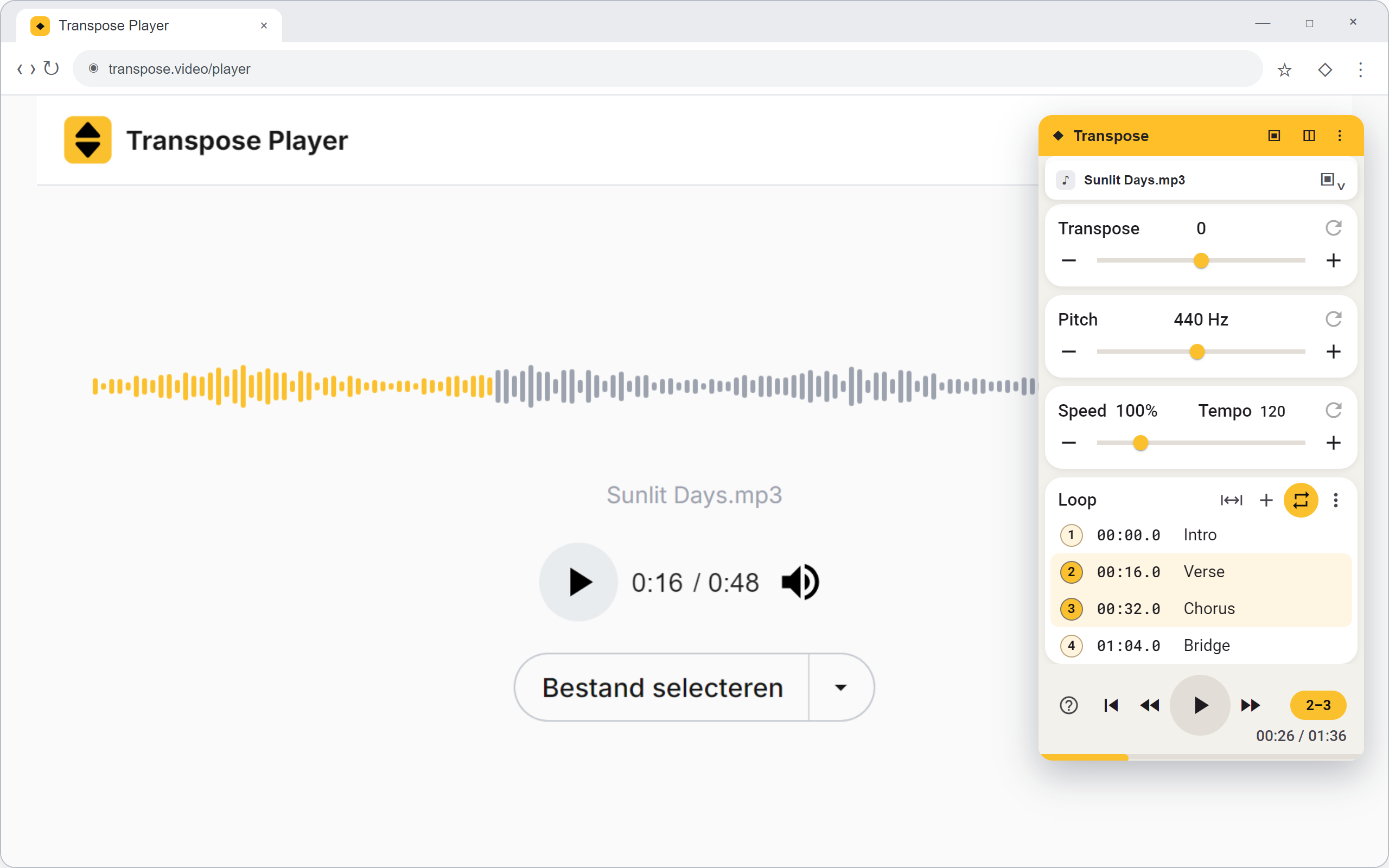
The file stays on your computer. See Your own files for continuing with the same song later.
Open a YouTube song again
Enable Always open in Player in Settings. Then open Library in Transpose and choose the song under Recent or Saved. The song opens in Player. This also works for supported Vimeo and SoundCloud songs.
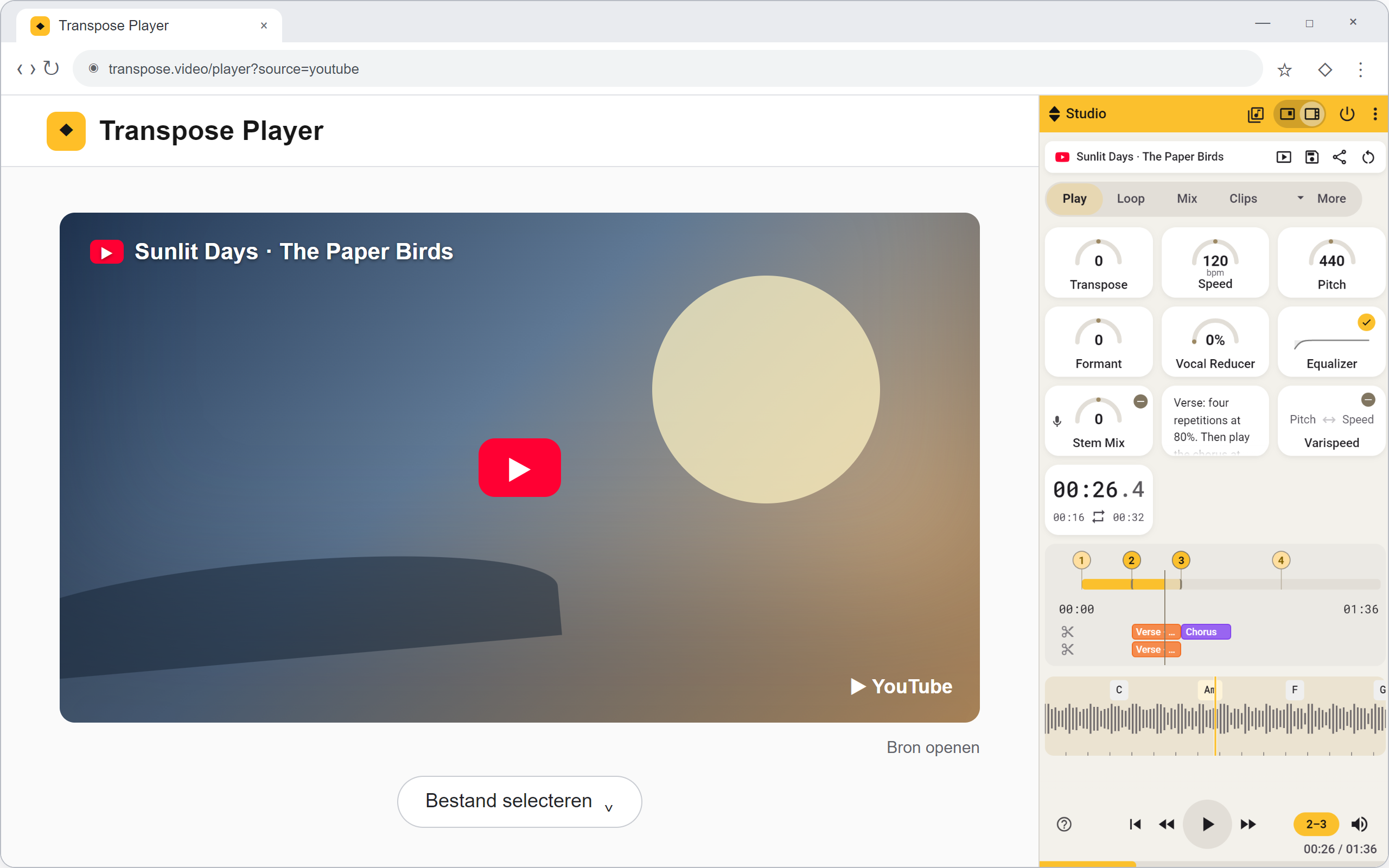
Use Open source to open the same song on its original website.
See Find your songs for what appears under Recent and Saved.
Theme and video layout
Choose Automatic, Light or Dark at the top of Player to set the theme. For video, choose Left / Center, Theater mode or Fullscreen.
Reopen local files
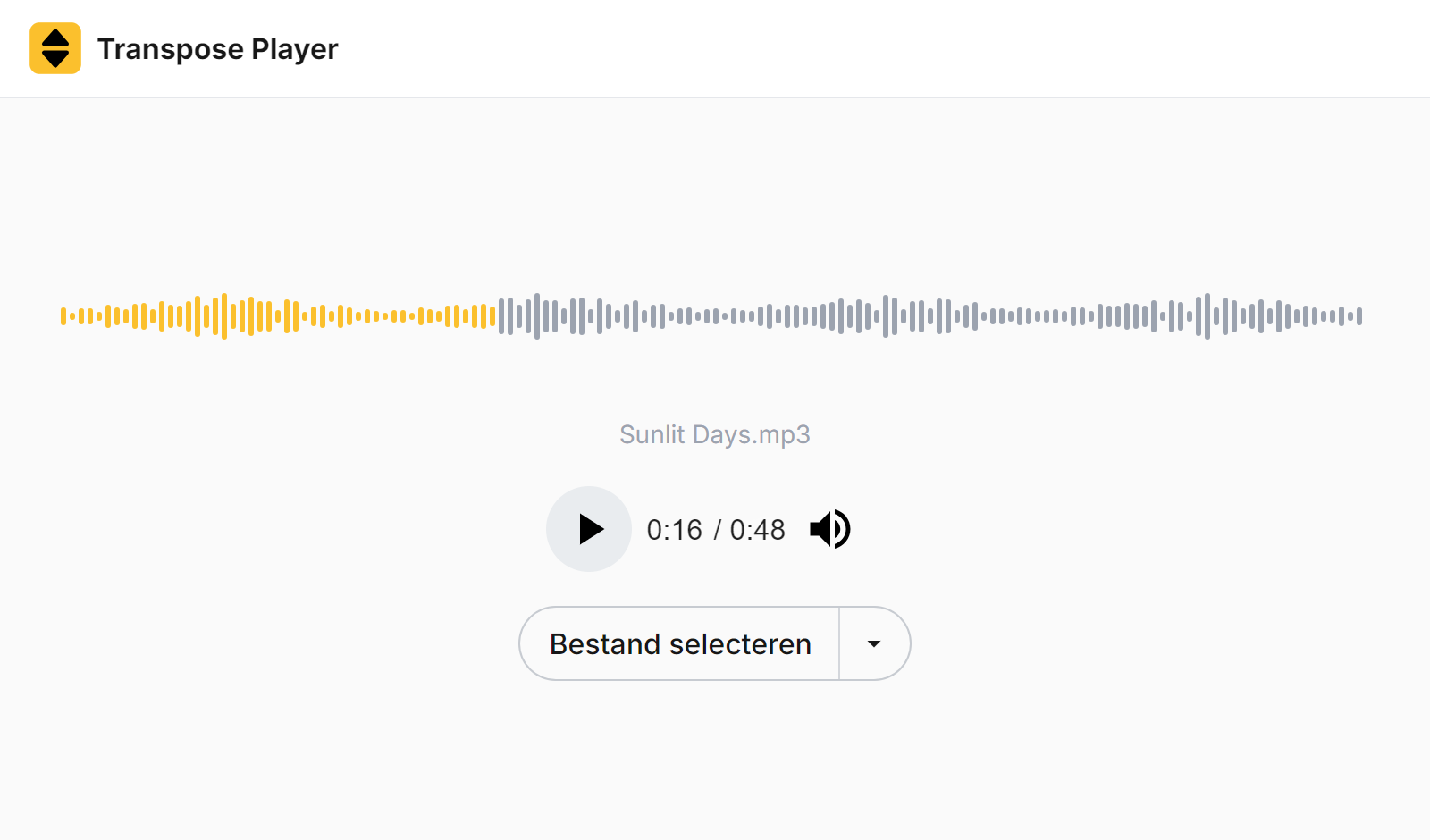
Open Transpose Player and choose Select file, or drag an audio or video file into its file area. The file stays on your computer; it is not uploaded.
Continue later
Open the existing song from Recent or Saved so Player can try to open the same file again. If the browser asks for permission, grant it again.
Cannot find the file? Select the original file again. Not every browser can automatically reopen a chosen file after restarting.
Avoid choosing the same file as a new song each time you want to continue earlier practice work. Transpose may treat it as a different song.
On another computer
A saved or shared Player link does not contain your file. Have a copy there and select it again. If it will not play, your browser may not support its format.