
Your library contains songs you have played, your three active Studio songs and practice versions you deliberately saved. Open Library from Transpose.
Recent
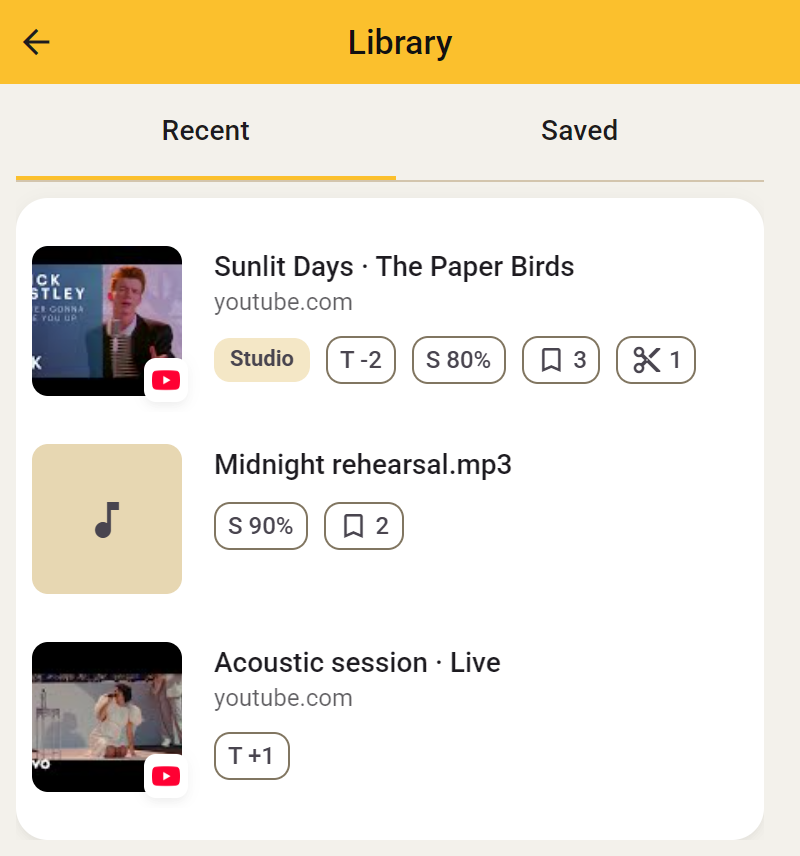
These are songs whose adjustments Transpose has remembered. Click the title or image to open a song again. An active Studio song opens in Side; another song opens with the ordinary Transpose controls.
Which songs appear here depends on Settings → Remember changes:
- Per song remembers your adjustments for that song.
- For all songs also uses your general pitch, speed and tuning choices as the starting point for the next song.
- Do not save does not add new songs to Recent.
Removing an item from Recent does not delete a saved version or free a Studio slot. Use Save when you want to deliberately keep a practice version in your account.
Studio
Studio songs
When you use the three included Studio songs, they appear at the top of Saved. This lets you open them directly and see which three slots are occupied. This separate list is not needed and is hidden while you have unlimited Studio.
A Studio slot keeps access to the extra tools for that song. It is not a saved practice version. Use Save if you want to deliberately keep loops, clips, notes and sound settings.
Saved
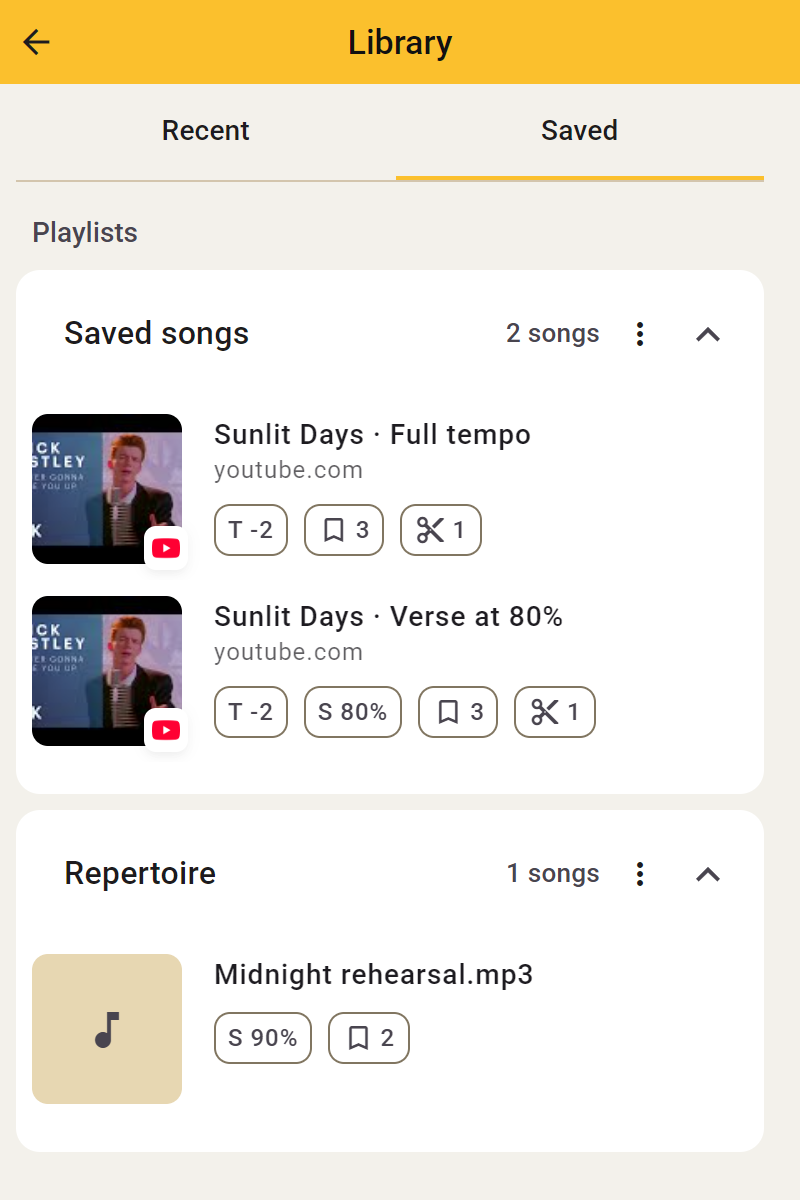
Sign in to see the practice versions you kept in your account with Save. They are organized in lists under Saved. Open a version to continue practising with the exact settings from that version.
A saved song is not automatically one of your three Studio songs. To use the extra Studio tools, choose it as a Studio song again or use unlimited Studio. Pitch, speed and loops remain free for every song.
If a saved song is not an active Studio song, you can:
- Choose Add to Studio and, when needed, decide which current Studio song to replace. The selected saved version then opens with its settings.
- Choose Open in Compact to open the source with the ordinary Transpose tools without using a Studio slot. The saved Studio version remains in your library.
You can keep several practice versions of one song, such as slow and full speed. Together, they belong to the same song and use at most one Studio slot.
The actions for a saved version let you rename it, move it to another list or remove that version. Replacing a Studio song does not delete its saved versions. Use lists to organize your library and Save to update later changes or keep them as a new version.
Lists
Lists group your saved songs. Make one for your next lesson and another for your repertoire, for example.
- Sign in and open Saved in the side-panel library.
- Choose or create a list when saving a song. You can move a saved song to another list later.
- Expand or collapse lists and sort by name or date.
- Rename your own lists whenever you like.
Deleting your own list moves its songs to the default list, so they stay saved. Deleting a song is a separate action. The default list always remains available.