
Use the power button to hear the difference between your adjusted sound and the original. To start again with your sound settings, use Reset audio.
Temporarily turn effects off
Click the power button at the top of Transpose. You hear the music without your sound adjustments, and an active loop stops. Your settings are kept: click again to use them again.
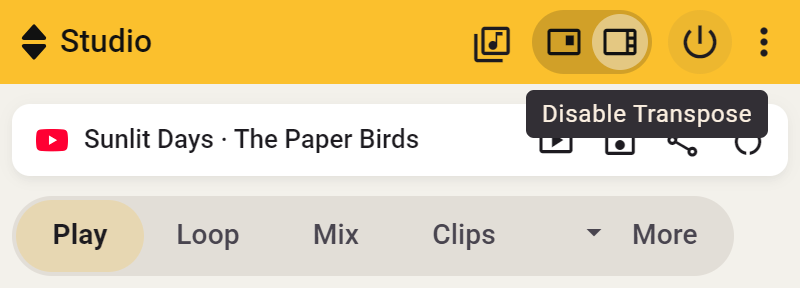
This lets you check the original key or speed without moving your sliders back. The power button is available in both the small window and the side panel.
Side
Just listen more quietly or loudly
Use the volume button in the side panel playback bar to adjust loudness or mute.
Studio
Reset your sound settings
For a Studio song, expand the songbar by clicking its title or arrow and choose Reset audio. This works in Side and in the Transpose window. Confirm your choice. Pitch, speed, tuning and tone adjustments return to their defaults, and Stem Mix switches off.
- Side: an active loop, clip or Count-in keeps running.
- Transpose window: an active loop, clip or Count-in stops.
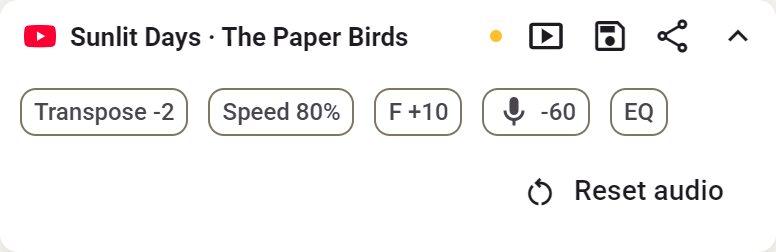
Your volume, markers, saved clips and notes remain. If you then start a clip with its own sound settings, those settings apply again. Read more about resetting adjustments.