
Transpose Transpose ▲▼  

FAQ

Getting started
  1. Install the extension in Chrome (Pro) or Chrome/Edge (Classic Free).
  2. Open a video page (e.g. YouTube).
  3. Open the extension from your browser toolbar.
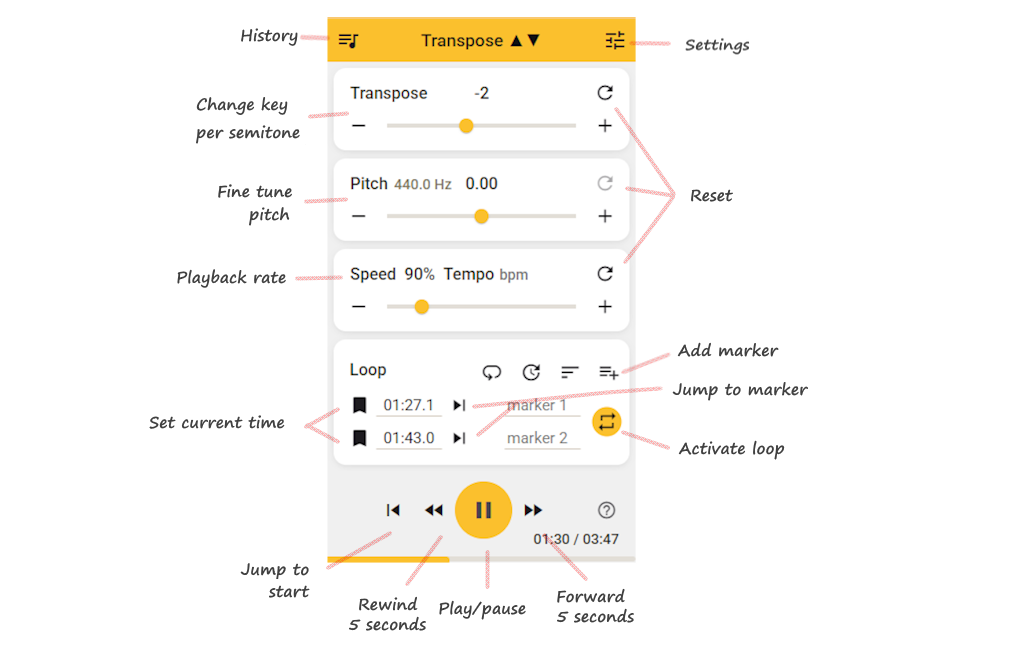
Getting started

If it doesn’t start immediately

  • Refresh the page.
  • Start playback before opening the extension.
  • Ensure your browser is up to date (latest Chrome/Edge).

Free: Works on desktop Chrome, Edge, and most Chromium-based browsers.

Pro: Available only in Google Chrome on desktop.

getting started install setup

Where can I find the extension?

After installation:

  1. Open Chrome or Edge.
  2. Click the puzzle-piece icon (Extensions) in the toolbar.
  3. Pin Transpose to keep it visible.
  4. Click the Transpose ▲▼ icon to open it.

Transpose extension icon in Chrome/Edge toolbar

install pin toolbar find extension

Is it free to use?

Yes. Transpose Classic is free and will remain free forever.

Our Mission: Encouraging Music Making

We believe that making music is for everyone. That's why the core of Transpose is a powerful, free tool for your daily practice sessions. It is our contribution to the music community, to help as many people as possible grow and enjoy playing.

The Classic version contains all the features from the original extension, which we've been improving since 2017.

  • Works on YouTube, Spotify, SoundCloud, Deezer, and many more.
  • Includes pitch, speed, and loop control.
  • Keeps track of your recent history song settings
  • Saved playlists/lists are Pro-only.

Transpose Pro is a new, optional upgrade.

It adds an improved pitch algorithm, plus extra features like formant control, vocal reducer, advanced loops, clips, and saved songs.

Upgrading is not required. Classic users keep the same free experience they always had.

pricing cost free pro classic upgrade

What is Transpose Pro?

Transpose Pro is the next step after Transpose Classic (Free).

Classic already includes all the functionality of the old one-time-payment Pro — nothing has been removed.

The new Pro is a premium upgrade on top of Classic, designed for musicians who want higher quality, more precision, and advanced practice tools.

Classic (Free) includes:

  • Pitch shift ±12 semitones & fine-tune
  • Speed control from 25% to 400%
  • Unlimited loops
  • Works on YouTube, Spotify, SoundCloud, Deezer, local files & more
  • No account required
  • No ads

Pro adds all of this on top:

  • Premium high-quality, low-latency pitch shifter
    • More natural sound, less delay, fewer clicks and artifacts
  • Formant control — change timbre/voice color without changing pitch
  • Vocal Reducer — lower centered vocals in stereo mixes
  • Advanced looping with:
    • High-resolution timeline and draggable markers
    • Wait-in counts , laps, and more accurate playback
    • Scrubbing preview when paused
  • Clips & sequences
    • Save fragments with their own pitch, speed, formant, and vocal reducer settings
    • Chain clips into practice sequences (e.g. slow → medium → original tempo)
  • Efficient looping station — rehearse with multiple markers and loop ranges
  • Save your work in the cloud
    • Clips, sequences, saved songs, and playlists sync across your signed-in desktop Chrome browsers
  • Custom keyboard shortcuts for faster control
  • Varispeed — links pitch and speed for natural tape-style feel
  • Reference Tuning — match non-standard or historical tuning standards
  • Low Latency mode — minimize audio delay for instrument-following drills
  • Side panel UI
    • Always on top, no popup interruptions
    • Easier access to all Pro features
  • Volume slider & Power toggle for quick control

Free: Works on desktop Chrome, Edge, and most Chromium-based browsers.

Pro: Available only in Google Chrome on desktop.

Summary:

  • Classic (Free) = everything you know and already use, forever free.
  • Pro = optional upgrade with better sound quality, less delay, and powerful new tools for practice and rehearsal.

👉 Upgrading is never required — but if you want the best experience, Pro is for you.

pro features classic free upgrade pitch speed loop formant vocal reducer clips songs playlists sync

Can I use Transpose on multiple devices?

Yes.

  • Classic (Free) works on any desktop or laptop with Chrome or Edge.

  • Pro only needs to be purchased once per Google account.

    As long as you sign in with the same Google account, your Pro access is valid on all your computers. Pro is available only in desktop Google Chrome.

Transpose also works in other Chromium-based browsers (Brave, Opera, Vivaldi).

It is not available for Android, iOS, Safari, or Firefox.

devices sync account multiple computers chrome edge

Is my privacy guaranteed?

Transpose is designed for privacy.

  • Your history and settings are stored locally or in your Google account.
  • Only aggregated usage statistics (Google Analytics) are collected.
  • No personal data or audio is uploaded.
  • We do not sell your data.

We comply with Chrome Web Store policies.

For Pro features like cloud storage, we use Google Sign-In. Please read our privacy policy for complete details.

privacy security data analytics GDPR

Why do some sites need extra permissions?

Some sites restrict direct access to their audio/video elements.

Transpose may request permissions to capture the tab’s audio as fallback.

  • Permissions are required only for media control.
  • No browsing history or personal data is collected.
  • You can revoke site permissions anytime in browser settings.
  • You can also use Settings Data & ResetRevoke Permissions.

permissions privacy security access

Troubleshooting: No media - No sound - Connection error

If you see 'No media' or 'Connection error', or there is no sound:

  • Refresh the page.
  • Start playback before opening the extension.
  • Open the video on its dedicated page (not embedded).
  • Ensure you are using the latest Chrome or Edge.

If the problem persists, temporarily disable extensions that may interfere with audio or page execution, such as:

  • VPNs with filtering
  • Audio capture or recording extensions
  • YouTube enhancers or equalizers
  • Exam or proctoring software

Some environments intentionally restrict access to media and advanced browser features. This is common on:

  • School or exam devices
  • Work or enterprise-managed browsers
  • Systems with proctoring or lockdown software

Note that some sites do not allow connection to their media. As a fallback you can use Tab capture mode .

If none of the above helps, reinstall the extension and try again.

troubleshooting no media no sound connection error not working tab capture

Spotify (Web Player) not working

If Spotify is playing via Spotify Connect (e.g. "Playing on iMac"), the audio is not inside the browser tab, so Transpose cannot connect.

Try this:

  • If prompted, allow site permissions for Spotify.
  • Refresh the page, then open Transpose.
  • In Spotify, switch playback to This Web browser.
  • Start the track first (via Spotify or the Transpose play button).
  • Open Transpose.
  • Pro (side panel): if controls do not reconnect, click the Transpose extension icon in the toolbar to re-activate the tab.

Also make sure you only have one Spotify tab playing.

spotify connect web player no media troubleshooting

What does "No media" or "Page not supported" mean?

These panels appear when Transpose cannot find controllable media on the current page:

  • No playable media — the page has no audio or video that Transpose can attach to.
  • Page not supported — the domain or page type is not supported by the extension.

What to do

  • Start playback on the page before opening the extension.
  • If prompted, click Allow access and approve the browser permission dialog.
  • Open the video or audio on its own dedicated page rather than in an embedded player.
  • Reload the page and try again.
  • If the site uses a non-standard or protected player, switch to Tab audio mode as a fallback: click or go to Settings Tab audio mode.

Pro (side panel): Navigate to a page with media — the side panel reconnects automatically. If the panel is unresponsive, click the Transpose extension icon in the toolbar to re-activate the tab, then close and reopen the side panel if needed.
Transpose extension icon in Chrome/Edge toolbar

troubleshooting no media page not supported connection tab capture

Why does Transpose ask me to "Allow access"?

This panel appears when the extension needs explicit permission to connect to audio or video on the current site. This can happen because:

  • Host permission — the main page domain requires permission.
  • Embedded player — an embedded player (e.g. a YouTube video on a third-party site) is on a different domain that also needs permission.
  • Re-activation — you navigated away or the page was reloaded, and the extension needs permission again.

What to do

  1. Click Allow access in the panel.
  2. Approve the browser permission prompt that appears.
  3. The extension will reconnect automatically.

Keep the permission enabled for that site so Transpose reconnects on future visits.

If it keeps asking

  • Allow access once for each domain that prompts — the host page and an embedded player may be on different domains.
  • If a VPN, ad blocker, or privacy extension is blocking the permission prompt, disable it temporarily and try again.
  • On managed/work/school devices, browser policies may prevent granting permissions. Use Tab audio mode as a fallback: Settings Tab audio mode.

Pro (side panel): If the panel appears after navigating away, clicking the Transpose extension icon in the toolbar re-activates the tab and reconnects — without reopening the side panel. Or close and reopen the side panel. Transpose extension icon in Chrome/Edge toolbar

troubleshooting activation required allow access add permissions connection

What does "Start playback" mean?

This panel appears when media exists on the page but is not yet playing, or after a page reload or tab navigation caused the connection to go stale.

What to do

  1. Press Play in the site's player to start audio or video.
  2. If Transpose still does not connect after playback starts, reload the page and open the extension again.

troubleshooting start playback connection no media

What does "Disconnected" mean?

This panel appears when the extension was connected but lost its connection to the page. This can happen when:

  • You navigated to a different page while the side panel was open.
  • The page was reloaded.
  • The extension was updated or the content script was unloaded (e.g. tab was discarded by the browser).

Unlike the "Allow access" panel, permission is already granted — the issue is that the content-script connection was interrupted.

What to do

  • Side panel: Click the Transpose extension icon in the toolbar to re-inject and reconnect on the current page. If that doesn't work, close and reopen the side panel.
  • Popup: Close the popup and reopen it on the new page.
  • If Transpose still does not connect, reload the page.

After re-activation, Transpose reconnects automatically if media is playing on the page.

troubleshooting disconnected connection lost reconnect navigated away

What does "Pitch not available" or "No compatible player" mean?

These panels appear when Transpose can detect audio playing on the page but cannot attach its pitch processor directly to the media element. This typically happens on sites that use protected, non-standard, or offscreen audio routing.

What to do

Switch to Tab audio mode as a fallback:

  1. Click the icon in the panel, or go to Settings Tab audio mode.
  2. Approve the browser capture prompt if it appears.
  3. Pitch and speed control will be available for all audio on the tab.

On many sites, playback controls (play, loop, markers) still work via the direct connection — only the pitch processing is handled through tab audio.

troubleshooting pitch not available no compatible player tab capture tab audio connection

What is Tab Capture mode?

Tab Capture processes all audio from the browser tab.

Use it when direct access to a video/audio element is blocked.

When to use it

  • The extension shows "No media" or cannot detect a compatible player.
  • The site uses a non-standard audio setup that blocks direct connection.

How to start Tab Capture

  • Use the panel action () when shown in connection/troubleshooting panels, or open Settings Tab audio mode.

How to exit Tab Capture

  • Open Settings and turn off the Tab audio mode toggle, or close and reopen the extension on the page.

tab capture tabcapture troubleshooting settings no media

Audio quality issues: glitches, stuttering, distortion

Free and Pro versions both depend on device performance.

Tips:

  • Close other tabs and applications.
  • Disable unnecessary extensions.
  • Check your task manager for background processes (e.g. updates, backups, virus scans) that may affect audio performance.
  • Restart browser or computer.
  • Check sound card sample rate (48kHz recommended).

Pro users:

  • Pro uses an improved algorithm that reduces clicks and noise.
  • Delay is much lower compared to the Free version.
  • On weak PCs, glitches can still occur.

troubleshooting audio quality glitches jitter stuttering distortion performance noise

Why is there a delay between audio and video?

Pitch shifting requires buffering the audio (200–400ms).

This delay between audio and video is normal in the Free version.

Actual delay can vary by device performance, browser load, and site/player behavior.

The Pro version uses a different audio engine with much better latency by default. Pro also has a Low Latency mode (Settings Audio engine options) for even lower delay — ideal for instrument-following or call-and-response practice.

delay latency sync lag free version pro low latency

Do Pro users have less delay?

Yes.

Transpose Pro uses a more advanced algorithm with:

  • Minimal audio delay (much closer sync with video).
  • Fewer clicks and artifacts.
  • More natural sound, especially at extreme pitch or speed changes.

Low Latency mode

Pro also includes a Low Latency mode (Settings Audio engine options) that further minimizes perceived delay at the cost of some audio quality. Useful for instrument-following drills or any situation where immediate response matters more than maximum fidelity.

Note: Low Latency mode is not available while Formant shifting is active.

delay latency sync lag pro version features low latency

Can I use local audio files?

Yes.

  1. Open the extension settings (More options icon Play local file).
  2. Choose an audio file (mp3, wav, etc.) from your computer.
  3. Play it and adjust pitch/speed/loops.

local files mp3 wav offline from computer

Can I save audio to a file?

No.

Saving audio streams (e.g. from YouTube) is not allowed by their Terms of Service.

For offline editing, use tools like Audacity with local files.

save export download record audacity mp3

Can I use Transpose with Chromecast?

Yes, but only when you cast your desktop.

Transpose works by processing audio in your desktop browser tab before casting; it does not provide native Chromecast app/device integration.

chromecast casting tv

What is Auto Save?

When a new video starts and you make a change to the Transpose controls, it is saved in your Recent history automatically. The video settings are recalled automatically if you play the video later again and open Transpose.

  • You can disable Auto Save in Settings.

Related setting: Remember settings

  • Remember settings keeps your last-used values (pitch, speed, etc.) as the startup defaults for new media, even when Auto Reset is on.
  • Disable it if you prefer starting fresh on every video.

settings auto save default remember settings

Auto Save history not saved after closing Chrome

If Auto Save is enabled and your recent history or video settings are missing after closing Chrome, check the following:

  • Use Chrome in a normal profile (not Guest or Incognito). You can see this at the top right next to the address bar.
  • Make sure Chrome is not clearing site data on exit. Check Chrome Settings -> Privacy and security, and any cleanup tools you use.
  • Ensure Chrome Sync is enabled, with extensions and settings included. Check Chrome Settings -> You and Google -> Sync and Google services, then Manage what you sync.

auto save history settings video sync chrome troubleshooting

What is Auto Reset?

When a new video starts, Auto Reset resets the controls back to their defaults — so each video starts fresh.

  • Previous settings are saved to history first, if Auto Save is on.
  • You can disable Auto Reset in Settings if you prefer your current settings to carry over to the next video in the same tab.

Interaction with Remember settings

  • Remember settings and Auto Reset work differently:
    • Auto Reset on → each new video starts from defaults.
    • Remember settings on → each new video starts from your last-used values (pitch, speed, transpose, etc.), even across sessions.
    • Enable one or the other depending on whether you want a clean slate or a consistent personal baseline.

settings auto reset default remember settings

How do advanced loops work?

In Transpose Pro, loops are much more precise and flexible than in the Free version.

They use a higher-accuracy algorithm and frame-based timing for smooth, gapless playback.

Creating an advanced loop

  • Click the Range button .
  • If there are only two markers, they are auto-selected as the loop range and the repeat icon is enabled.
  • If there are more markers, all marker buttons and timeline heads (1, 2, 3 …) start blinking:
    • Click once to choose the start marker.
    • Click again to choose the end marker.

Long press a marker button to get in to range select mode directly

Loop playback options

  • Repeat icon → toggle the current loop on/off.
  • Laps icon → repeat the entire song.
  • Wait-in count → insert 1–4 metrical counts before each repeat, based on the tempo setting.

Marker interactions

  • Click a marker → jump playback to that time.
  • Long-press a marker → enter select range mode.
  • Markers button or Shift + click → enter edit markers mode , where you can:
    • Rename the label.
    • Adjust the exact time (input).
    • Sync the marker to the current playback position ().

Timeline

  • Markers are shown as rounded numbered labels (1, 2, 3 …) in chronological order.
  • Click a circle to jump to that time.
  • Click anywhere on the timeline bar to jump; when paused you get a short (≈300 ms) preview (scrub time configurable in Settings).
  • Markers are always sorted by time.
  • Click the + button at the end of the marker list to create a new marker at the current time.

Tip: Combine advanced loops with clips (see What are clips and how do I use them?) to build step-by-step practice sequences.

pro features looping loops markers clips timeline

How do loops work in the Free version?

The Free version has a simpler loop system with basic markers.

Adding markers

  • Click the bookmark icon to save the current time as a marker.
  • Each marker shows its time and optional label.

Using markers

  • Click the → jump icon to move playback to that marker.
  • If two markers follow each other in time, you can loop that segment by clicking the repeat icon between them.

Loop toolbar options

  • Repeat song → loop the entire track.
  • Wait-in count → add a short count-in before repeating.
  • Sort → reorder markers chronologically.
  • Add → create a new marker at the current time.

Free loops are handy for quick practice ranges, but they lack the higher precision, editing, and sequencing options of Pro advanced loops.

free features looping loops markers

What is Varispeed?

Varispeed links pitch and speed together, like a tape deck or turntable — speeding up also raises pitch, slowing down lowers it.

  • Toggle Varispeed in the Speed/Pitch panel to enable the linked behavior.
  • Useful when you want a natural, analog-style pitch-speed relationship rather than independent control.

Range and quality

Varispeed only allows a small pitch range (around −2 to +2 semitones). This is by design: within that range, no time-stretch processing is needed, which means the audio stays at its highest possible quality with no stretching artifacts. It is the best choice when you only need a slight pitch correction or fine-tuning.

Pro: Varispeed is available in Pro Trial and Pro Active.

varispeed pitch speed features linked pro quality

What is Extended Range?

By default, Transpose shifts pitch by up to ±12 semitones (one octave up or down).

Enable Extended Range in Settings to expand this to ±36 semitones — three full octaves in either direction.

  • Useful for extreme key shifts, analysis, or specialized practice needs.
  • Available for all users (Free and Pro).
  • In Varispeed mode, the range remains constrained to the tighter linked pitch-speed limits regardless of this setting.

extended range transpose semitones settings features

What is Reference Tuning?

Reference Tuning lets you match Transpose to recordings or instruments that use a non-standard pitch standard.

The default is A = 440 Hz (modern international standard). Some recordings, orchestras, or instruments use a different tuning — for example Baroque ensembles often use A = 415 Hz, and some recordings use 432 Hz or 443 Hz. If you practice along with such material, everything will feel slightly off even when the transposition looks correct.

How it works

Reference Tuning uses two independent values:

  • Track tuning — the pitch standard of the recording you are playing along with.
  • Instrument tuning — the pitch standard of your instrument or ensemble.

Transpose calculates the difference and applies it automatically so your pitch adjustments stay in tune with both.

Practical workflow

  1. Enable Reference Tuning in Settings Audio engine options.
  2. In the Pitch panel, set Track to the recording's tuning frequency.
  3. Set Instrument to your instrument's tuning frequency.
  4. Transpose and Pitch values now reflect the corrected difference.

Built-in presets

Both Track and Instrument have quick-select presets:

Preset Frequency
French Baroque 392 Hz
Baroque 415 Hz
Classical 430 Hz
Earth frequency 432 Hz
Modern 440 Hz
442 Hz
443 Hz
445 Hz
Chorton 465 Hz

Pro: Reference Tuning is available in Pro Trial and Pro Active.

pro features reference tuning tuning 432hz 440hz baroque pitch settings

What are clips and how do I use them?

In Transpose Pro, practice fragments are stored as clips.

A clip is a saved audio range (loop) with its own playback and effect settings.

Clips are tied to a specific time range in one track, while saved songs are whole-track entries you can recall later.

Creating a clip

  1. Select a range by setting start and end markers.
  2. Click the scissors icon to cut and save the range as a clip.

Editing a clip

  • Click start time, end time, or name to edit them directly.
  • Use the + menu inside the clip to add or adjust parameters such as speed, transpose, formant, or vocal reducer depth.
  • Each clip remembers its own parameter values.

Playing clips

  • Press Play on a clip to start playback from that point; the rest of the sequence continues after it.
  • Clips repeat automatically according to their loop setting.
  • You can insert wait counts between clips to pause before the next one starts.

Managing clips

  • Duplicate a clip quickly from the More menu .
  • Rename or drag to reorder clips to build your own practice flow.
  • Toggle a clip on/off to skip it in the sequence without deleting it.
  • Delete a clip from the More menu when it is no longer needed.
  • Chain clips together to form a sequence (e.g. the same fragment at different speeds or pitches).

Clips let you practice step by step, gradually increasing speed or changing pitch, without having to reset settings manually.

pro features clips sequences looping fragments

What is Formant control?

Formant control changes the timbre (voice color) without affecting pitch.

  • Useful for adapting male ↔ female voice range.
  • Can make instruments sound darker or brighter.

pro features formant timbre voice sound quality

What is the Vocal Reducer?

The Vocal Reducer uses Mid-Side processing to isolate and reduce the center channel of a stereo track, where vocals are typically placed.

It is not perfect on every song, but it can lower vocals in many cases. Results depend on how the track is mixed.

Main controls:

  • Vocal reducer (Depth)

    Master dry/wet control.

    • At 0% the original signal passes through.
    • At 100% you only hear the fully processed signal.
    • Default 80% = strong but blended effect.
  • Vocal Cut (vocalCut)

    Crossfades between two reduction techniques:

    • 0% → multi-band notch filters (precise, cleaner).
    • 100% → phase cancellation (L–R subtraction, more aggressive, may add artifacts).
  • Center Focus (centerFocus)

    Shifts the stereo focus of the reduction.

    • Useful if vocals are not perfectly centered.
    • Move slightly left or right to better target vocals before Mid-Side processing.
  • Precision (Q)

    Controls the filter sharpness:

    • High Q = very narrow, surgical cuts.
    • Low Q = broader cuts, better for variable vocals but may affect nearby instruments.
  • Low Cut / High Cut

    Pre-filters to clean the signal before reduction:

    • Low Cut: removes rumble below e.g. 100 Hz.
    • High Cut: removes hiss/"air" above e.g. 8000 Hz, helps reduce artifacts from cymbals/hi-hats.

Tips:

  • Start with - Vocal reducer (Depth) first, then fine-tune the other controls.
  • Works best on stereo mixes where vocals are centered.
  • May not fully remove vocals; it is designed for practice and karaoke use, not for studio-quality separation.

pro features vocal reducer karaoke mid-side remove vocals

How do I save songs?

Saved songs is the current workflow name.

If you previously used the word "presets," this now maps to saved songs in the current UI.

Use the Save flow in side panel History (Recent/Saved) to store songs in lists with their settings.

For step-by-step instructions, see How do I save songs to a playlist?.

pro features songs playlists settings save sync

Do my settings sync between devices?

Yes.

  • Sign in with your Google account.
  • Your saved songs, playlists, clips, sequences, and history sync across desktop Chrome where you are signed in with the same Google account.
  • No manual export or import needed.

Pro: Cloud sync is a Pro feature. Classic Free stores settings locally in the browser only.

pro sync account devices cloud save songs playlists clips

How do I save songs to a playlist?

The side panel has a History section with two tabs: Recent and Saved.

  • Recent shows your automatically saved history (when Auto Save is on). Click any item to return to that media with its saved settings visible.
  • Saved is your personal library, organized in playlists.

Saving a song

  1. While playing, click the Save button in the toolbar.
  2. Choose Save as new version or update an existing entry.
  3. Select an existing playlist or create a new one.

Managing playlists

  • Rename or delete a playlist from its menu.
  • Sort songs by date or name.
  • Edit a song's name or move it to a different playlist.

Pro: The Saved tab and playlist organization are Pro features. Classic Free has access to Recent history only.

pro features history saved playlist save cloud songs library

Can I also use the popup instead of the side panel?

Yes, you can easily switch between the two user interfaces. Open the Settings page at the top right, then choose Open in popup or Open in side panel .

Pro keeps the improved audio engine in popup mode.

pro sidepanel side panel popup ui

Can I control Transpose with keyboard shortcuts?

Yes. Transpose has built-in keyboard shortcuts for the most common actions.

Default shortcuts

Action Key
Play / Pause Space, Enter
Transpose up Arrow Up
Transpose down Arrow Down
Pitch up Shift + Arrow Up
Pitch down Shift + Arrow Down
Speed up = / Numpad +
Speed down - / Numpad -
Seek forward Arrow Right
Seek backward Arrow Left
Toggle loop L
Add marker M
Jump to marker 1–9 Digit 1–9

Shortcuts are active when the extension panel is focused. They are automatically disabled when typing in text inputs.

Custom shortcuts (Pro)

Pro users can remap any shortcut. Go to Settings Keyboard shortcutsCustom shortcuts, then click any action to reassign it.

keyboard shortcuts hotkeys keys pro features settings

How do I start the free trial?

Click Try Pro in the extension.

  • Sign in with Google.
  • The side panel opens and starts your free trial.
  • You do not need to enter payment details to start the trial.
  • The trial stops automatically after 7 days.
  • If you want to stop earlier, sign out in Settings and you will have Classic (Free) again.

Free: Works on desktop Chrome, Edge, and most Chromium-based browsers.

Pro: Available only in Google Chrome on desktop.

pro trial account free trial

Why do I need to sign in with Google?

Transpose uses Google Sign-In to provide a secure and simple login experience.

  • No new password to remember: You can sign in with your existing Google account without creating a new password just for Transpose.
  • Secure: We rely on Google's trusted authentication system to protect your account.
  • Cross-device access: Your Pro subscription is linked to your Google account, so it works automatically on any computer where you're signed in.

We do not currently support other login methods like email and password.

login account password security authentication

How do I subscribe to Pro?

After your trial you can pick:

  • Monthly subscription
  • Annual subscription (discounted)
  • Lifetime access (one-time payment)

Payments are processed by Paddle.

pro subscribe payment paddle billing buy purchase

Do I need to pay again for another computer?

No.

A single Transpose Pro subscription is linked to your Google account, not to a specific device.

  • Sign in with the same Google account on each computer.
  • Your Pro access and saved songs, playlists, clips, loops, and history will be available.

👉 You only need one subscription per Google account, even if you use multiple devices.

pro subscribe payment account devices license

How do I manage or cancel my subscription?

Use the official Paddle Customer Portal to manage your subscription:

👉 Open Customer Portal

From there you can:

  • Manage renewal settings (including cancellation)
  • Update payment method
  • View and download invoices

If you cancel in the portal, your subscription usually stays active until the end of the current billing period, then stops renewing.

pro subscribe cancel paddle billing account manage subscription

How do I update my payment method?

In the Customer PortalPayment methodsUpdate.

pro payment paddle billing account credit card

How do I view or download invoices?

Invoices are available in the Customer Portal.

  • Go to PaymentsView Invoice.
  • Download PDF or request an updated invoice.

billing invoice paddle receipt

How does the lifetime plan work?
  • One-time payment.
  • Permanent access to all Pro features.
  • No recurring charges.
  • Invoices remain available in the Customer Portal.

pro lifetime payment billing one-time

What happens after the free trial?
  • Trial lasts 7 days.
  • After that, Pro features stop unless you subscribe.
  • The Classic version continues to work for free.

pro trial subscribe expired

What happened to the old Pro version?

In 2021, the Chrome Web Store removed support for paid extensions.

As a result, the original one-time-payment Pro version was made free for everyone.

That version is now called Transpose Classic (Free).

We believe that making music is for everyone. That's why the core of Transpose is a powerful, free tool for your daily practice sessions. It is our contribution to the music community, to help as many people as possible grow and enjoy playing.

The Classic version contains all the features from the original extension.

The new Transpose Pro is an upgraded edition with more advanced features and separate licensing.

If you once bought the old Pro, you now effectively have the same version with Classic.

Upgrading is not required. With Classic you keep the same experience you've always had.

classic free pro history legacy old version