
Studio
Studio helps you explore a recording and prepare your practice session. It adds sound controls, a visual view of your song and tools for practising difficult passages.

Side
Hear vocals and instruments more clearly
- Stem Mix: choose vocals, drums, bass or other instruments and adjust the balance between that part and the rest. Listen to one part or turn it down to play it yourself.
- Vocal Reducer: reduce vocals in the recording.
- Equalizer: adjust low, middle and high frequencies.
- Formant: change the tone of a voice or instrument without raising or lowering the melody.
- Varispeed: change speed and pitch together, like a record player.
- Reference Tuning: match the recording to your instrument using separate reference values, for example when a recording is not tuned to 440 Hz.
Side
Practise difficult passages step by step
- Clips: keep a verse, chorus or other passage with its own name.
- Settings per clip: choose a slower speed or another pitch for one passage.
- Clip sequences: arrange passages, choose repetitions and repeat the sequence if you wish.
- Create a practice sequence: automatically build steps from slow to faster, or practise the same passage in other keys, fifths, fourths or scales.
- Notes: keep a reminder with your song, such as a fingering or practice goal.
Side
See your music
- Timeline: view markers, loops and clips. Zoom in and move boundaries to choose a passage precisely.
- Waveform: navigate using the waveform and follow chords, beats, markers and loop boundaries around the playhead.
- Time display: keep elapsed and remaining time or loop progress in view.
Chord and beat recognition may vary with the recording quality and complexity. The individual guides explain how to prepare analysis and Stem Mix.
StudioSide
Make the controls work for you
- Scenes: choose Play, Loop, Mix or Clips.
- Edit scene: make controls larger or smaller and hide parts you do not need.
Studio
- Mouse wheel and settings: adjust values by scrolling over a control and customize the controls.
- Custom shortcuts: choose key combinations for frequent actions.
- MIDI: control Transpose with your controller’s buttons or pedals.
Save and continue later
Sign in and choose Save to keep your practice settings. Make several versions of one song, organize them in lists and find them on another device. Share creates a link to your prepared settings; the music itself is not sent.
Using Studio
Open a song and choose Open in Studio. You can select three songs at a time, without an account or expiry date. For more songs, there are unlimited Studio options.
The first song is added once Transpose recognizes it. Confirm your choice for the second and third songs. Reopening the same song does not use another slot.
Replace a Studio song
When all three slots are occupied, open the new song and choose Open in Studio. Select the current song you want to replace.
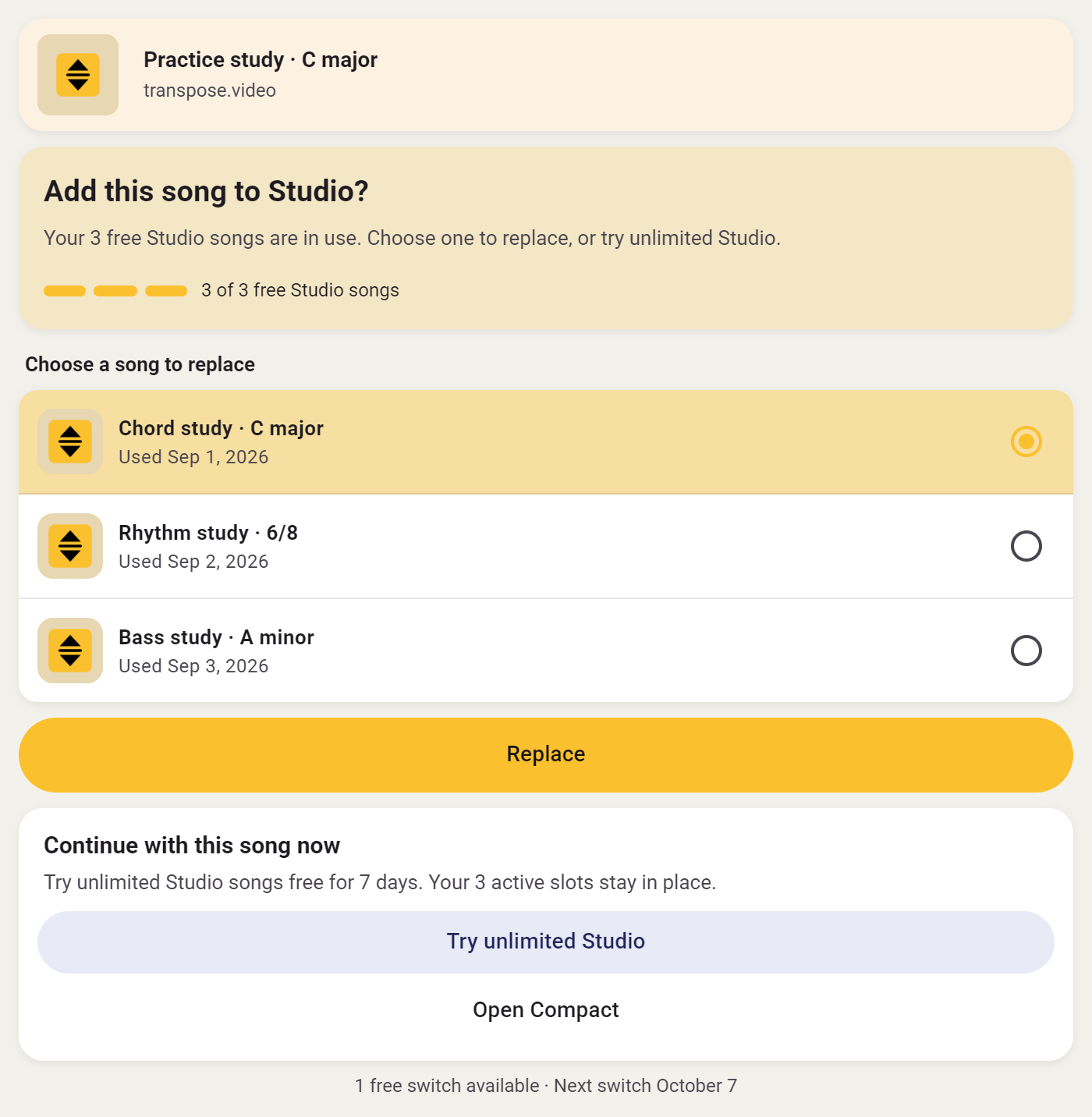
The first replacement is available immediately. After that, you can replace one song every 30 days. The dialog shows when the next replacement is available; unused replacements do not accumulate.
The replaced song remains usable with the standard Transpose controls. Saved versions with loops, clips and other settings remain in Library.
Your Studio songs are also accessible from Library and Manage Studio songs in the expanded songbar. Signing in links your selection to your account for use on other devices.
Unlimited Studio
Want Studio’s extra features on more than three songs? Settings shows your options for unlimited Studio and how long your current access lasts.
Try seven days
If a trial is available, you choose when to start it. You can then use Studio on unlimited supported songs for seven days. Installing or signing in does not start the trial.
After the trial
You can continue with your original three Studio songs. If you had not chosen any yet, you can choose three. The waiting period for replacing a song does not restart.
Your saved practice settings stay in your library. For another song, choose it as one of your three or renew unlimited access. The ordinary Transpose features remain available.
View and manage your Studio access under Account / Studio in Settings.