
Repeat a passage between two markers. Use Range to select the loop boundaries and the repeat button to turn the loop on or off.
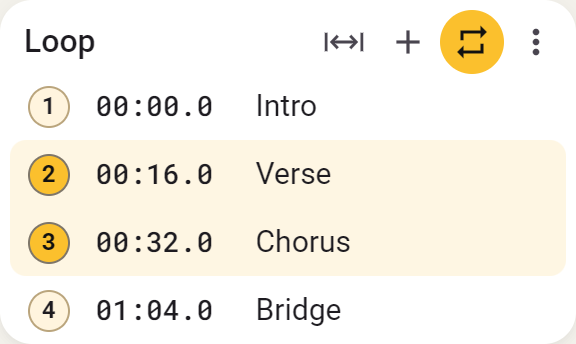
Markers
- Add marker places a marker at the current playback position.
- Number: click to jump to the marker.
- Time: click to change its position.
- Name: click to name the marker, for example Intro, Verse or Chorus.
- Hover over a row and choose Current time to move the marker to the current playback position.
- Hover over a row to reveal Delete. You cannot delete the last marker.
Range
- Click Range, left of the plus button. This requires at least two markers.
- Long press: hold the first marker’s number to start range selection, then click the second marker to complete the range.
- Click the first and last markers of the passage. The selected range is highlighted. The example runs from marker 2 — Verse, 00:16 to marker 3 — Chorus, 00:32.
- Repeat turns the selected loop on or off. The button is highlighted when active.
- Edit a marker’s time to adjust that boundary. Choose Range again to select different markers.
A–B in the playback bar
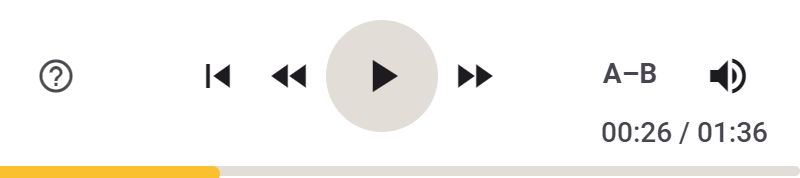
- A–B: during playback, click once to capture the start and again to capture the end. The passage then repeats.
- An active marker range displays its marker numbers, such as 2–3. Click to stop the active loop.
- This button also stops whole-song repetition or clip playback, depending on the active mode.
Count-in
- Count-in plays four beats before the loop starts. In the small window, find it under ; in Side, the button is beside Repeat song.
- The beats follow tempo and playback speed. Set the tempo in Speed if necessary. Without a known tempo, Transpose uses 100 BPM.
- Pause or Stop interrupts Count-in without changing the boundaries.
- Count-in is part of the standard loop controls. For clips, set it separately in the clip settings.
Repeat song
Repeat song repeats the entire song. In the small window, find it under ; in Side, it is beside the range repeat button.
StudioSide
Marker blocks
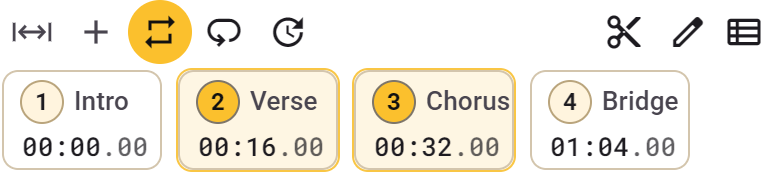
- Blocks display each marker’s number, name and time. Click a marker to jump to it; use Range to select boundaries.
- Edit exposes marker editing and deletion.
- Shift+click a marker block to enter edit mode. Long press to start range selection from that marker, then click the other boundary.
- List view switches to the editable marker list.
Marker list
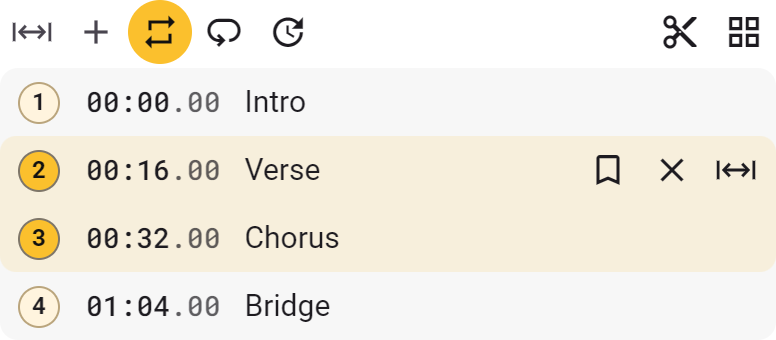
- Click the number to jump, the time to enter a precise position, or the name to change it.
- Long press the number to select that marker as the first range boundary, then click the other boundary.
- Hover over a row for Current time, Delete and the range action. In range selection mode, use the rows to choose the boundaries.
- Blocks view switches back to marker blocks.
- Add to clips creates a clip from the current valid loop.
Timeline
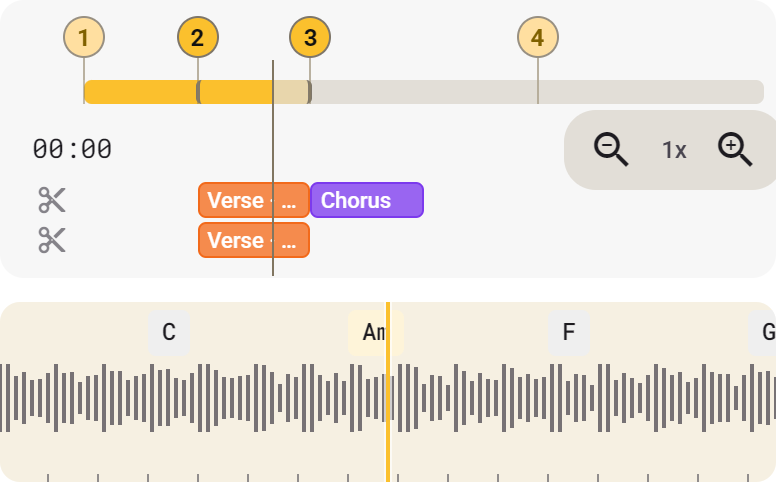
- Markers: drag a numbered marker to change its position. Moving a loop boundary also changes the range.
- Loop range: the coloured selection shows the range between the selected markers.
- Playback position: click or drag the timeline. Dragging plays short audio fragments; a playing song resumes at the selected position when you release.
- Zoom: zoom in for precise positioning or out for an overview.
- Clips: coloured bars show clip positions relative to the markers and loop.
Show or hide Timeline in Edit scene. The Waveform below has a fixed playhead and separate controls; waveform dragging is silent.