
The playback bar controls the current song. It is available in the Transpose window and in Side.
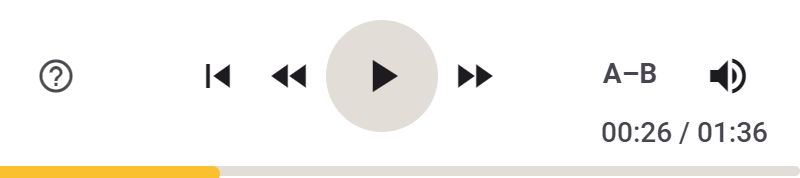
- Play/pause: start or pause playback. During Count-in, this cancels the count-in.
- Rewind/forward: move by the configured number of seconds (5 seconds by default) within the same song. During an active loop, these jumps stay within its boundaries.
- Return to start: without an active loop, jump to
0:00. With an active loop, the first press always jumps to its start. Press again within half a second to jump to0:00. - A–B: capture loop start and end with two clicks. An active loop displays the marker range, clip name or repeat mode. Click to stop that mode. See Loops.
- Progress bar: click to seek to that position. The time display shows current position and total duration.
- Help: open the tour or online support.
Keyboard shortcuts
Enable Shortcuts in Settings. Space/Enter controls play/pause; Left/Right seek backwards or forwards. 0 (also numpad), Ctrl+Left (Windows/Linux) or Option+Left (macOS) activates Return to start. See Keyboard shortcuts for other bindings.
Studio
- Seek interval: set how many seconds Rewind and Forward jump in Settings → Seek interval.
Side
- Volume: open the volume control to adjust the level or mute the sound.
Playback controls are enabled only when Transpose can control the source. With Tab Audio and no access to the media player, use the website’s playback controls.