
StudioSide
In Studio’s side panel, you can choose which controls to see. Each layout is called a scene. Your song and practice settings stay the same when you choose another layout.

Choose what you want to do
- Play: adjust pitch, speed and sound.
- Loop: work with markers and repeat a passage.
- Mix: change the music’s balance and tone.
- Clips: create and practise saved passages.
Click a name to open that layout. More shows layouts that do not fit in the bar.
Want different controls? Choose Edit scene. You can also create layouts and change their order. A playing clip sequence continues when you switch layouts.
Edit scene
Make a layout that fits how you practise. Show larger or smaller cards and hide the parts you do not need.
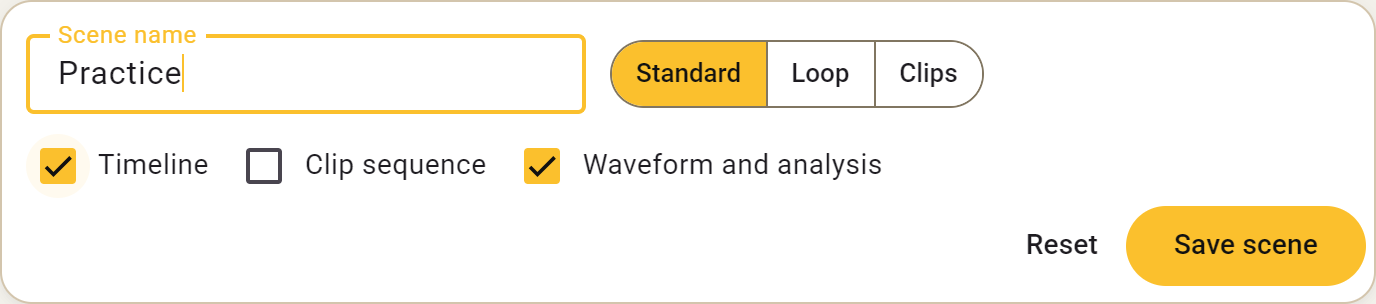
- Choose a layout in the side panel, such as Play, and open Edit scene in its menu.
- Name the layout and choose whether it mainly shows controls, loops or clips.
- Set each card to Full, Compact or Hidden. Compact here means a small card inside the side panel.
- Choose whether to show the timeline, waveform with analysis and clip bar.
- Click Save.
Hiding a card does not turn its effect off or erase its settings. Your markers and clips stay too.
To return to the original layout, restore its defaults. Use Manage scenes to reorder or remove your own layouts.
Manage scenes
Alongside Play, Loop, Mix and Clips, you can create your own side-panel layouts. Two personal layouts are provided to start with; you can have ten in total.
- Open Manage scenes from the layout menu or Settings → Scenes.
- Create a layout, name it and choose the controls to show. Then save it.
- Drag layouts into order or use Move up and Move down.
- Change a name or layout whenever you like. You can also copy or delete your own layouts.
The default layouts can always be restored. Restoring a layout does not remove songs, clips or markers.